---
updatedAt: 2026-08-04T18:59:01.000Z
agentTools:
  projectIndex: https://docs.sev.co/llms.txt
---

# Source Inventory Overview

# Overview

**Source Inventory** pages are integration-specific and only display **asset data** from a single **Source** integration-type. Source Inventory pages can be used to search for and monitor assets associated with a Source. Additionally, you can also review information about a Source's health (**Status**) and reconfigure it as-needed.

![Source Inventory Page](https://my.sev.co/docs/SourceInventoryPage.png) To access an Source Inventory page, select the **Source Inventory** icon on the **Navigation bar** then select the **Integration** you would like to view information about from the **dropdown**.

![Source Inventory Menu](https://my.sev.co/docs/SourceInventory_202508.gif)

> ⚠️
>
> Make sure to pay attention to the **Devices**, **Users**, and **Software** tabs at the top of the Source Inventory dropdown, as Integrations are separated by **asset type**.

***

# Filters & Configuration Panel

The **left-panel** of the page contains filters you can use to search for specific Integration assets.

<Table>
  <thead>
    <tr>
      <th>
        Asset Type
      </th>
      <th>
        Filters
      </th>
    </tr>
  </thead>
  <tbody>
    <tr>
      <td>
        **Devices**
      </td>
      <td>
        • OS Platforms<br />• OS Releases<br />• Mac Manufacturers
      </td>
    </tr>
    <tr>
      <td>
        **Software**
      </td>
      <td>
        • Software Vendor<br />• OS Platform<br />• OS Release
      </td>
    </tr>
    <tr>
      <td>
        **Users**
      </td>
      <td>
        • Groups<br />• Roles<br />• Domains
      </td>
    </tr>
    <tr>
      <td>
        **Vulnerabilities**
      </td>
      <td>
        • Severity<br />• OS Platform<br />• OS Release<br />• Category
      </td>
    </tr>
    <tr>
      <td>
        **Resources**
      </td>
      <td>
        • Cloud Platform<br />• Resource Type
      </td>
    </tr>
    <tr>
      <td>
        **Cloud Vulnerabilities**
      </td>
      <td>
        • Severity<br />• Cloud Platform<br />• Resource Type
      </td>
    </tr>
  </tbody>
</Table>

<br />

It is also where you can access an Integration's **configuration panel**. Select the **Configure** link to view this information.

![Selecting Configure Link to view logs](https://my.sev.co/docs/SoftwareInventory_OpenConfigMenu.gif)

# Query Builder

Additionally, the page has a **query builder** that can be used to run complex searches that may not be accomplishable using filtering tools alone. <Anchor label="Click here" target="_blank" href="doc:manage-queries">Click here</Anchor> to learn more.

![Source Inventory query builder](https://my.sev.co/docs/SourceInventory_QueryBuilder.png)

***

# Asset Details

Each **Row** on the Source Inventory page represents a unique **asset**. Select the caret (<img src="https://my.sev.co/docs/Inventory_ListView_Caret.png" width="20px" />) to reveal additional information about an asset.

![Source asset details](https://my.sev.co/docs/IntegrationInventory_ViewAssetDetails.png)

On **User** and **Device Inventory** pages you can also hover over and select an asset to view it in the **Live Inventory** page.

***

# Raw Asset Data

Additionally, you can also view any **raw asset data** on this page. Raw asset data is data ingested by Aurora ASM directly from a **Source's** API endpoint(s). Once a **row** has been expanded, select the **Raw** button to access this information.

![Selecting the RAW button to view RAW data for an asset](https://my.sev.co/docs/ViewRawSourceAssetData.gif)

***

# Software Inventory

The **Software Inventory** page shares many of the same features as the **Device** and **User** Source Inventory pages. It provides up-to-date information about software that has been installed on **Devices** in your Organization.

Once an Integration has been configured to collect Software assets, the Aurora ASM platform will correlate a list of Devices associated with any software that has been identified.

![Image of the Software Inventory page](https://my.sev.co/docs/SoftwareInventory.png)

## Viewing Device Details

To view a list of Devices with a specific software installed, select the **See devices** link that corresponds with it.

A popup will appear with a list of all Devices that have the software installed.

![Selecting the "see devices" link](https://my.sev.co/docs/SoftwareInventory_SelectSeeDevices.gif)

<br />

Hover over then select a Device to view additional details about it on the <Anchor label="**Live Inventory**" target="_blank" href="doc:sevco-platform-live-inventory">**Live Inventory**</Anchor> and <Anchor label="**Device Details**" target="_blank" href="doc:sevco-platform-asset-details">**Device Details**</Anchor> pages.

![Select device link to view info on Live Inventory and Device Details pages](https://my.sev.co/docs/SoftwareInventory_SelectSeeDetails.gif)

***

# Vulnerability Inventory

The **Vulnerability Inventory** page shares many of the same features as other Source Inventory pages. It provides up-to-date information about software vulnerabilities as they are represented by the **Source** that have been identified on **Devices** in your Organization.

> ℹ️
> **Note:** Some **Sources** use custom grouping formats that bundle multiple CVEs to form a **distinct Source vulnerability**. [View a vulnerability's details](#vulnerability-details) to identify the associated CVEs.

Once an Integration has been configured to collect Vulnerabilities, the Aurora ASM platform will correlate a list of Devices associated with any vulnerability that has been identified.

![Image of Vulnerability Inventory page](https://my.sev.co/docs/SevcoPlatform_SourceInventory_Vulns_202510.png)

## Vulnerability Details

Each **Row** on the Vulnerability Inventory provides an overview about a specific vulnerability and contains information about its **name**, **severity**, the **category** it falls under, and the **number of devices** impacted by it.

Select a vulnerability's corresponding caret (<img src="https://my.sev.co/docs/Inventory_ListView_Caret.png" width="20px" />) to reveal additional information about it. This includes an in-depth **description** of the vulnerability, a **solution** for remediation or mitigation, associated **CVEs** , and the **CVSS** scores used to determine the severity of the vulnerability.
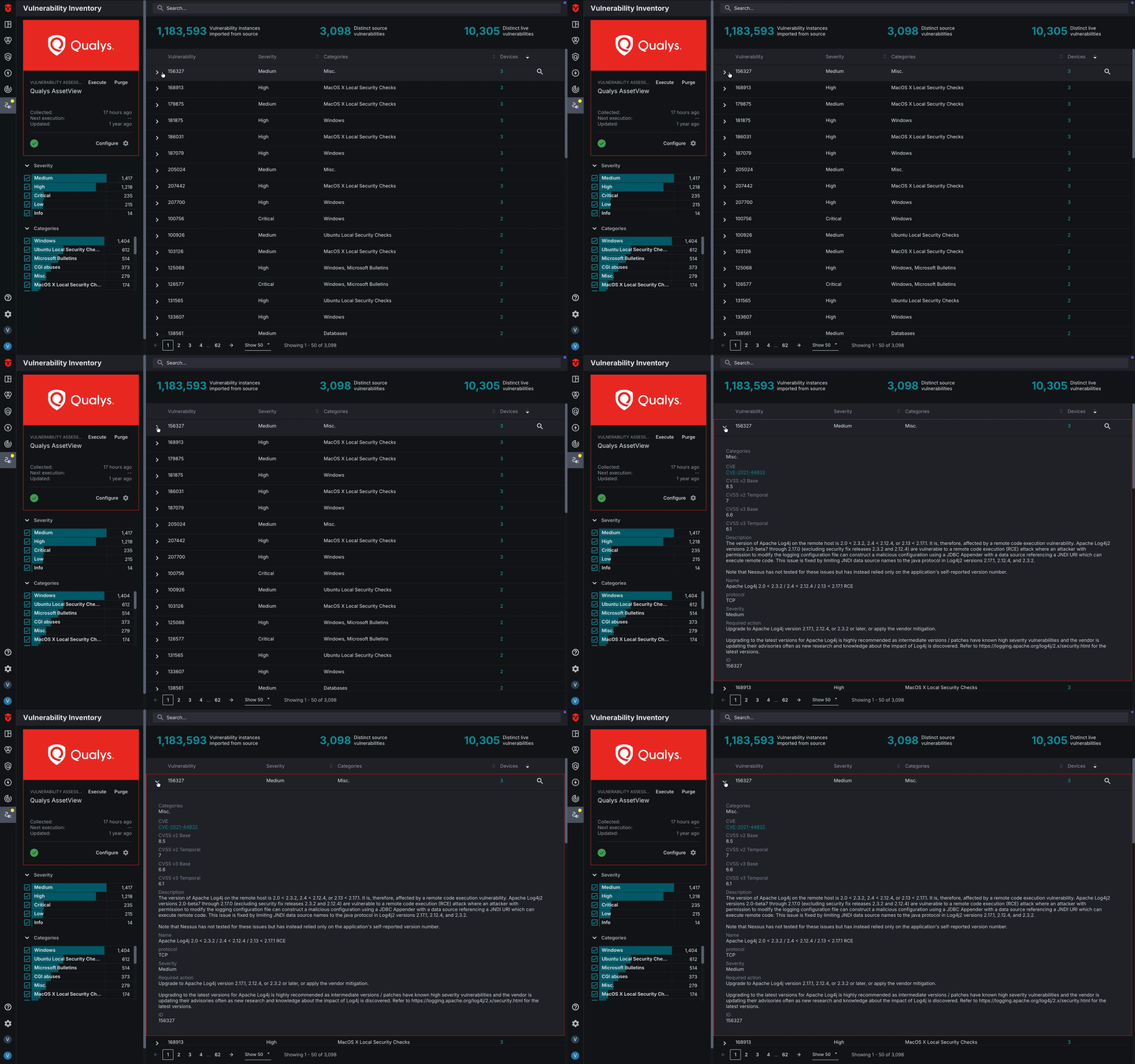
![Open Vulneranbility Details](https://my.sev.co/docs/SevcoPlatform_SourceInventory_OpenVulnDetails_202510.gif)

## Viewing Affected Devices

In addition to the device-count information displayed in the **Devices** column, users may also view the specific devices impacted by a vulnerability. To view a list of devices with a particular vulnerability, select the **See devices** link that corresponds with it.

A popup will appear with the list of devices.
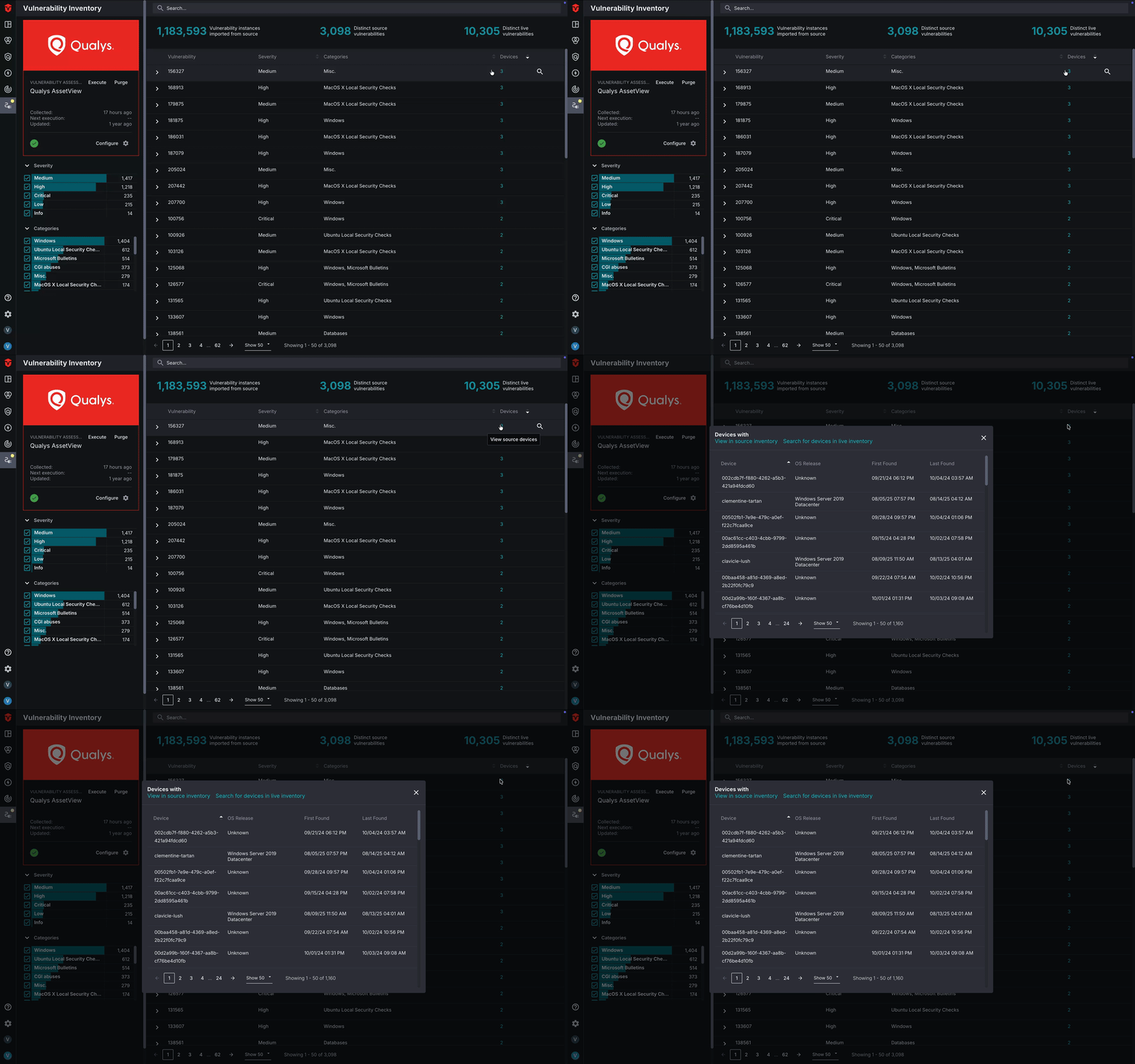
![Selecting the "see devices" link](https://my.sev.co/docs/SevcoPlatform_SourceInventory_VulnViewDevices_202510.gif)

<br />

Hover over then select a Device to view additional details about it on the <Anchor label="**Live Inventory**" target="_blank" href="doc:sevco-platform-live-inventory">**Live Inventory**</Anchor> and <Anchor label="**Device Details**" target="_blank" href="doc:sevco-platform-asset-details">**Device Details**</Anchor> pages. You may also use the links at the top of the popup to view all Devices on the Source or Live Inventory page.

![Selecting a Device to view on Live Inventory and Asset Details page](https://my.sev.co/docs/SevcoPlatform_SourceInventory_VulnViewDeviceLI_202510.gif)

# Resource Inventory

The **Resource Inventory** page shares many of the same features as other Source Inventory pages. It provides up-to-date information from a particular **Source** about **resources** in your cloud infrastructure.

![Image of Resource Inventory page](https://my.sev.co/docs/CSPM_ResourceInventory.png)

Each **Row** on the Resource Inventory page provides an overview about a specific resource and contains information about its **name**, **resource type**, **cloud platform**, **last activity**, and when it was **first** and **last observed**.

Select a resource's corresponding caret (<img src="https://my.sev.co/docs/Inventory_ListView_Caret.png" width="20px" />) to reveal additional information about it. Use the **Filter** bar to search the raw data.

![Expanded Resource Details row](https://my.sev.co/docs/CSPM_ResourceInventory_Expanded.png)

# Cloud Vulnerabilities Inventory

The **Cloud Vulnerabilities Inventory** page shares many of the same features as other Source Inventory pages. It provides up-to-date information from a particular **Source** about **cloud vulnerabilities** in your cloud infrastructure.

![Image of Resource Inventory page](https://my.sev.co/docs/CSPM_CloudVulnInventory.png)

Each **Row** on the Cloud Vulnerabilities Inventory page provides an overview about a specific cloud vulnerability and contains information about its **name**, **severity**, **cloud platform**, **resource type**, related source **resources**, and when it was **first** and **last observed**.

Select a cloud vulnerabilities's corresponding caret (<img src="https://my.sev.co/docs/Inventory_ListView_Caret.png" width="20px" />) to reveal additional information about it. Use the **Filter** bar to search the raw data.

![Expanded Cloud Vulnerabilities Details row](https://my.sev.co/docs/CSPM_CloudVulnInventory_Expanded.png)

## View Related Source Resources

In addition to the related source resource count displayed in the **Resources** column, users may also view the specific resources impacted by a cloud vulnerability. To view a list of resources with a particular vulnerability, select the **See source resources** link that corresponds with it.

A popup will appear with the list of resources.

![View related Source resources link](https://my.sev.co/docs/CSPM_CVulnInventory_ViewSourceResources.png)

Hover over then select a resource to view additional details about it on the <Anchor label="**Live Inventory**" target="_blank" href="doc:sevco-platform-live-inventory">**Live Inventory**</Anchor> and <Anchor label="**Resource Details**" target="_blank" href="doc:sevco-platform-asset-details">**Resource Details**</Anchor> pages. You may also use the links at the top of the popup to view all resources on the Source or Live Inventory page.

![Highlighting redirect to Live Inventory link](https://my.sev.co/docs/CSPM_CVulnInventory_RelatedResourcesRedirect.png)