---
updatedAt: 2026-09-25T19:28:14.000Z
agentTools:
projectIndex: https://docs.sev.co/llms.txt
---
# Asset Details Overview
# Overview
In addition to the information found on the **Live Inventory** page, you can also view additional information about specific **assets** on their **Asset Details** page.
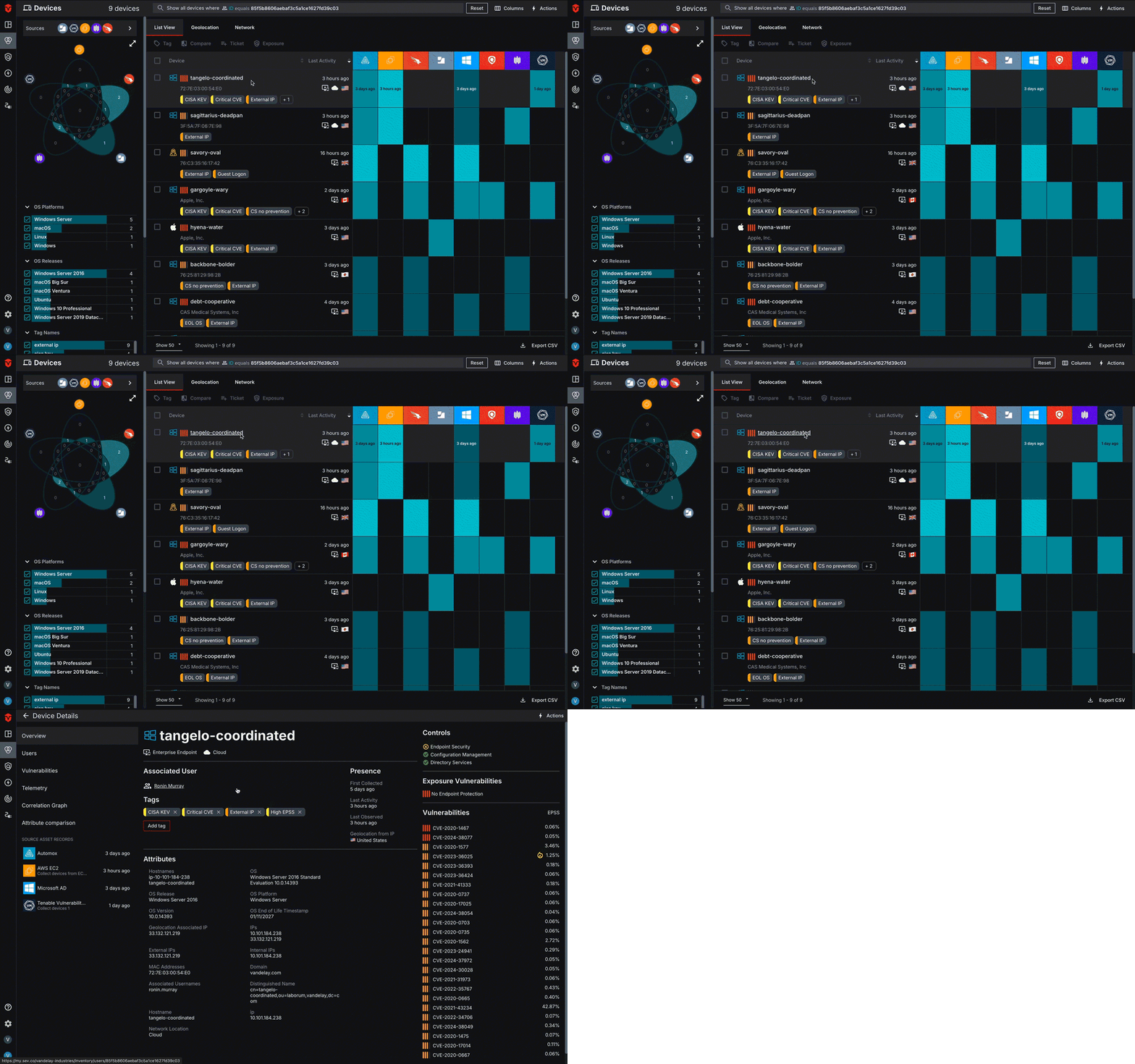
Asset Details pages can be accessed by identifying the asset you would like to view in the **Asset List** on the **Live Inventory** page and selecting its **name**. Alternatively, you can also open its dropdown and select the **See Details** button.
***
# Asset Overview
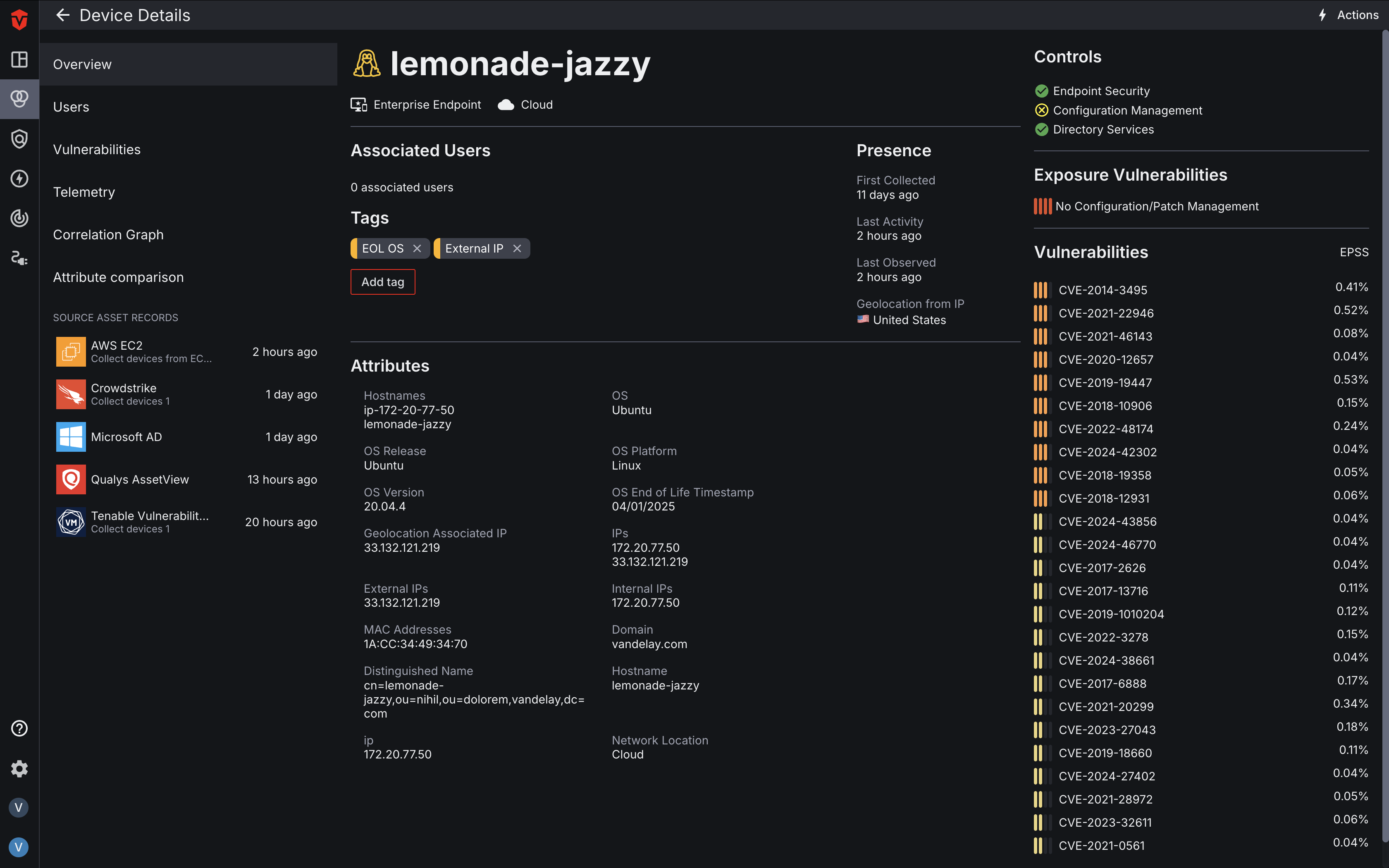
The **Overview** tab of the Asset Details page displays information that has been aggregated from all of an asset's associated **Integrations**. In this tab, you can view information about **Associated Assets**, **Tags**, **Presence** information, **Security Controls**, as well as **Attribute** data. Some users may also see **Exposure** and **Unified Vulnerability** data as well, if they have vulnerability tracking turned on in Aurora ASM.
## User Data Breaches
> ℹ️
> The **User Data Breaches** section will only display on **User** Asset Details pages if you've configured an Aurora Vulnerability Management integration to collect **risks**. For more information, see [Arctic Wolf Aurora VM](https://docs.sev.co/docs/awn-aurora-vm).
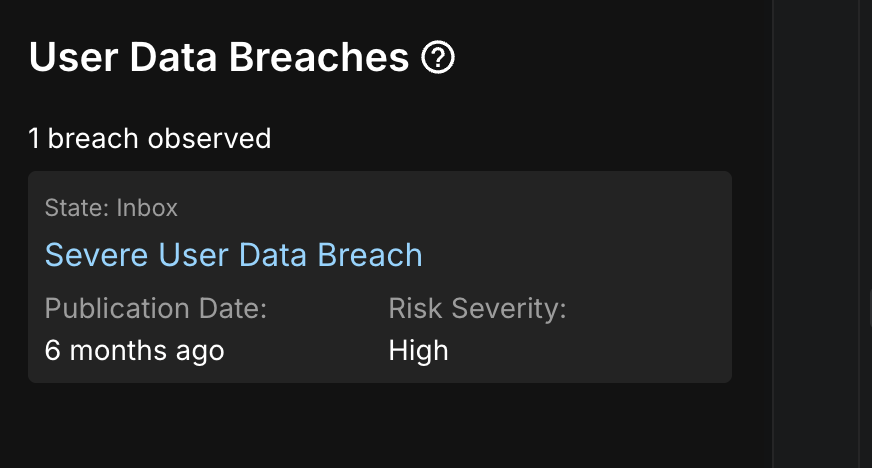
The **User Data Breaches** section of a **User** Asset Details page displays information about data breaches that have been identified by Arctic Wolf's **Aurora Vulnerability Management** platform. This section will only appear if:
* At least one **Source** integration has been configured to collect user asset data
* An **Aurora Vulnerability Management** integration has been configured to collect risks
Click on a breach's **name** to view more information about it on the **Risk Details** page in Arctic Wolf's **Unified Portal**.
***
# Related Assets
Related assets are aggregated assets that Aurora ASM has correlated with the asset you are viewing details for. For example, a **device** may be correlated with the **user** who is signed into it. You can access related assets by selecting the **User** or **Device** tab underneath the **Overview** tab.
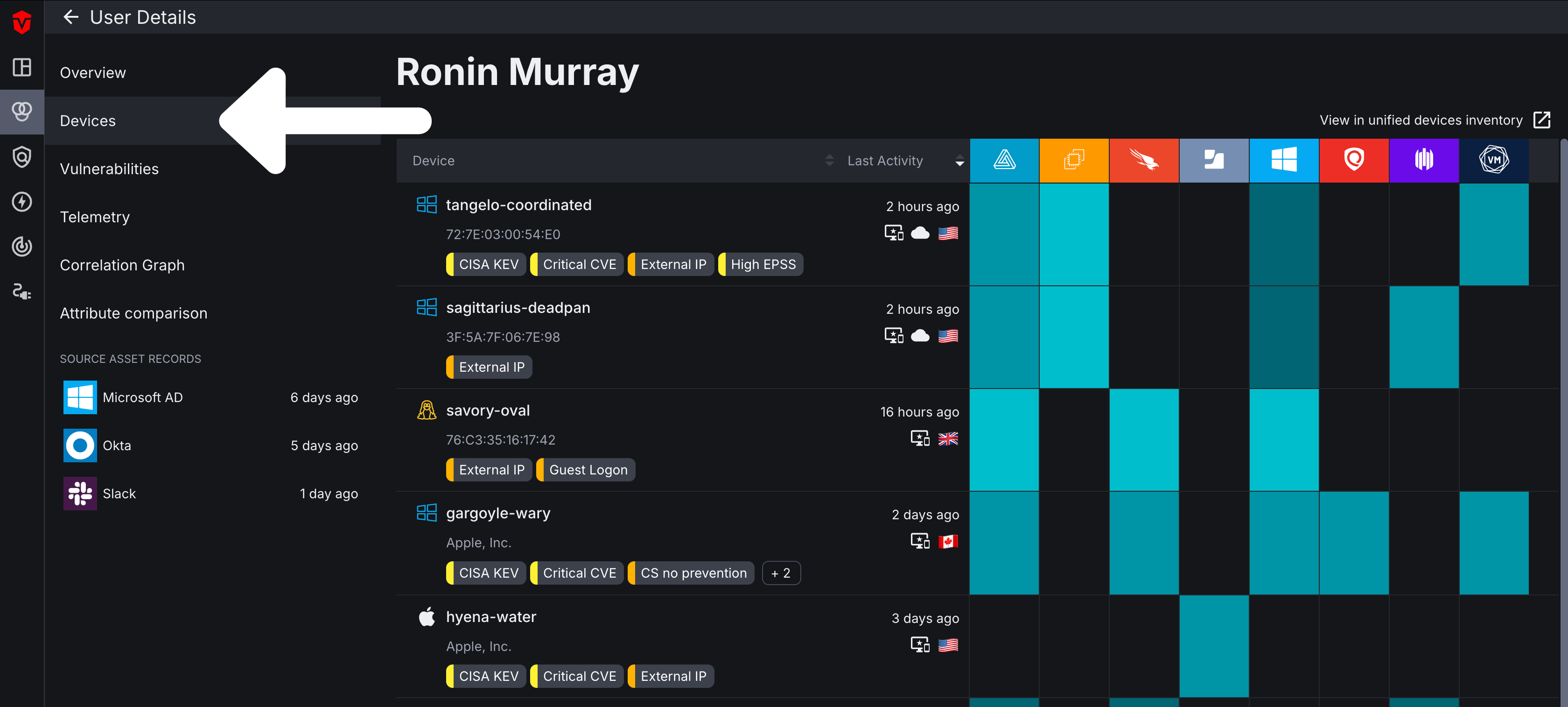
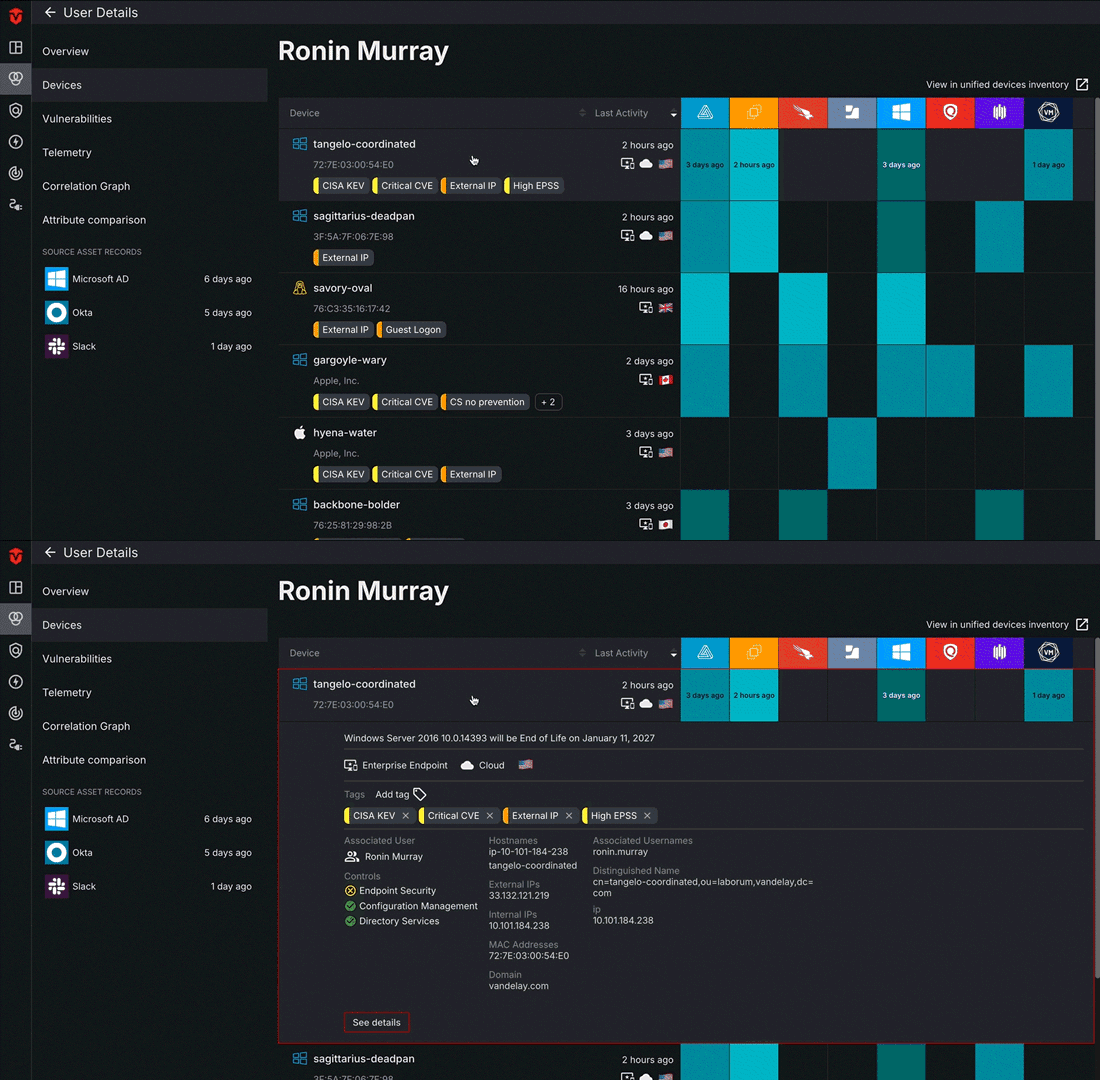
Related assets are displayed like you would view them on the **Live Inventory** page. This includes **attribute** data as well as information about when the asset last communicated with your **Sources**. Select an asset row to reveal additional attribute details about a particular asset.
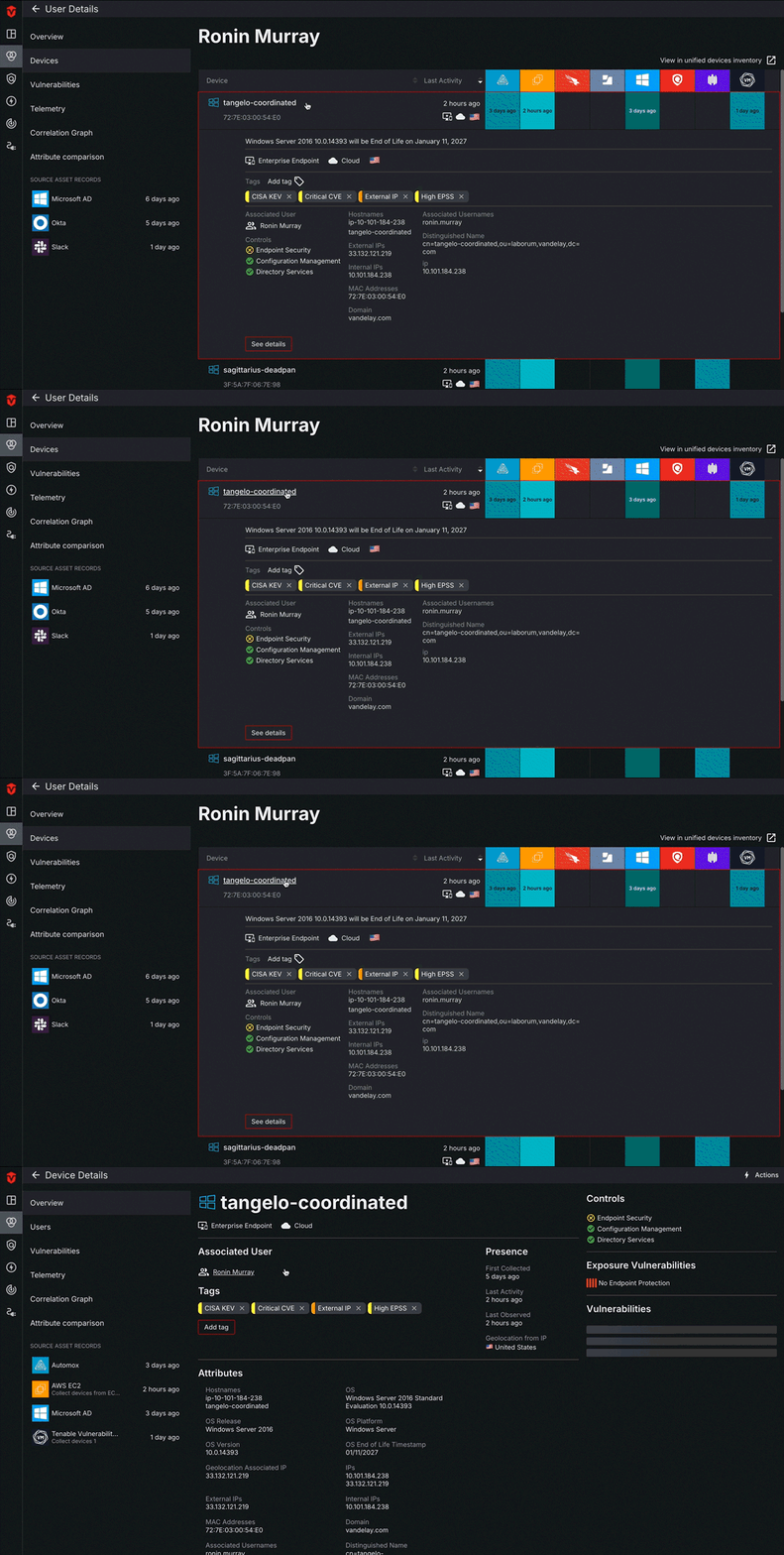
Select an asset's **name** or corresponding **See Details** button to view its **Asset Details** page.
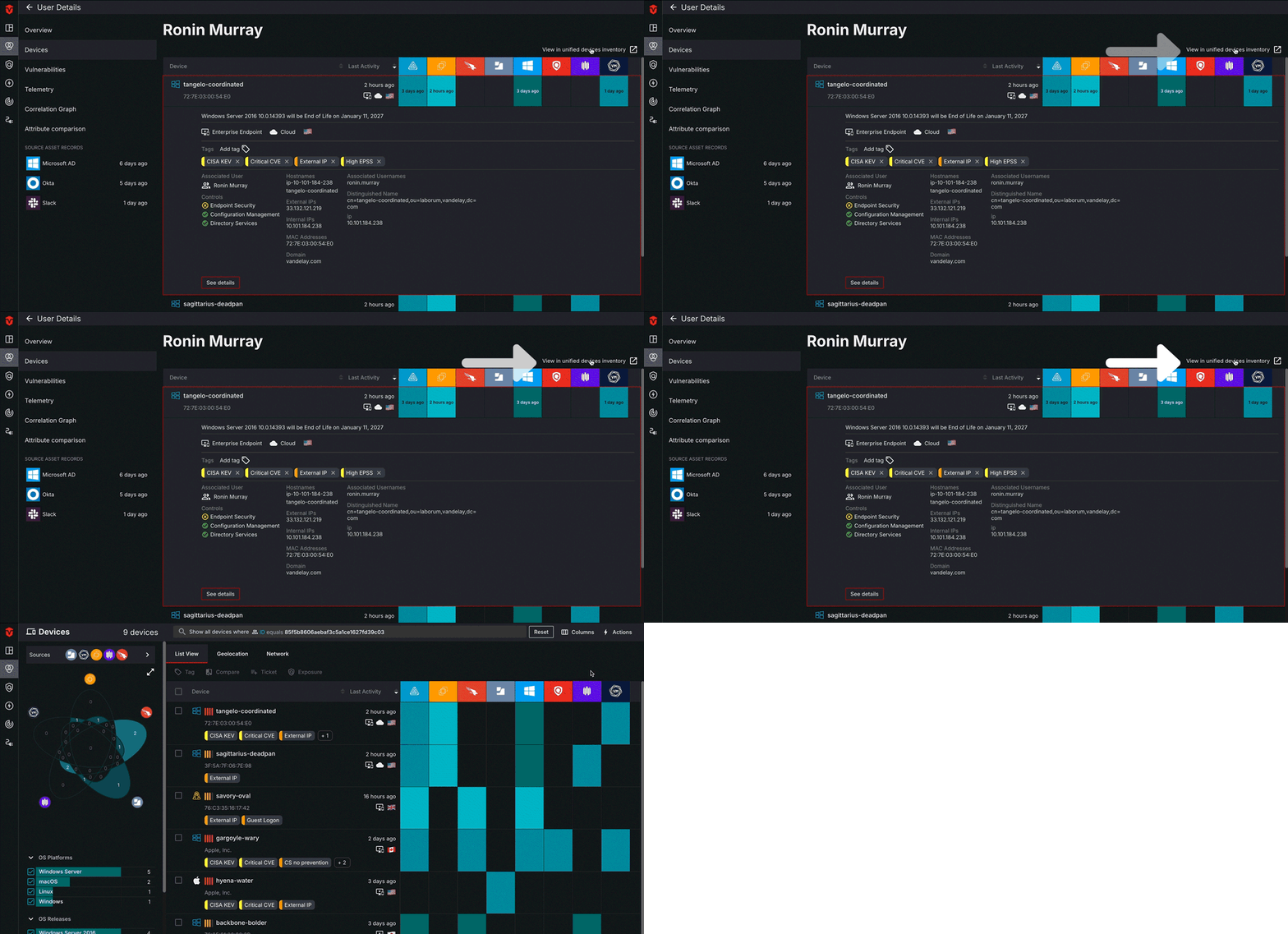
To view all of your related assets on the Live Inventory page, select the **View in unified inventory** link above the asset **heat map** at the top of the page.
***
# Vulnerabilities
**Note:** This tab is only available to users who have vulnerability tracking turned on in Aurora ASM. For more information about this feature, contact your CSM.
The **Vulnerabilities** tab can be used to view both the **Exposure** and **Software Vulnerabilities** impacting an asset.
The **Exposure Management** tab allows you to view and assign asset remediation statuses to your **exposure vulnerabilities**.
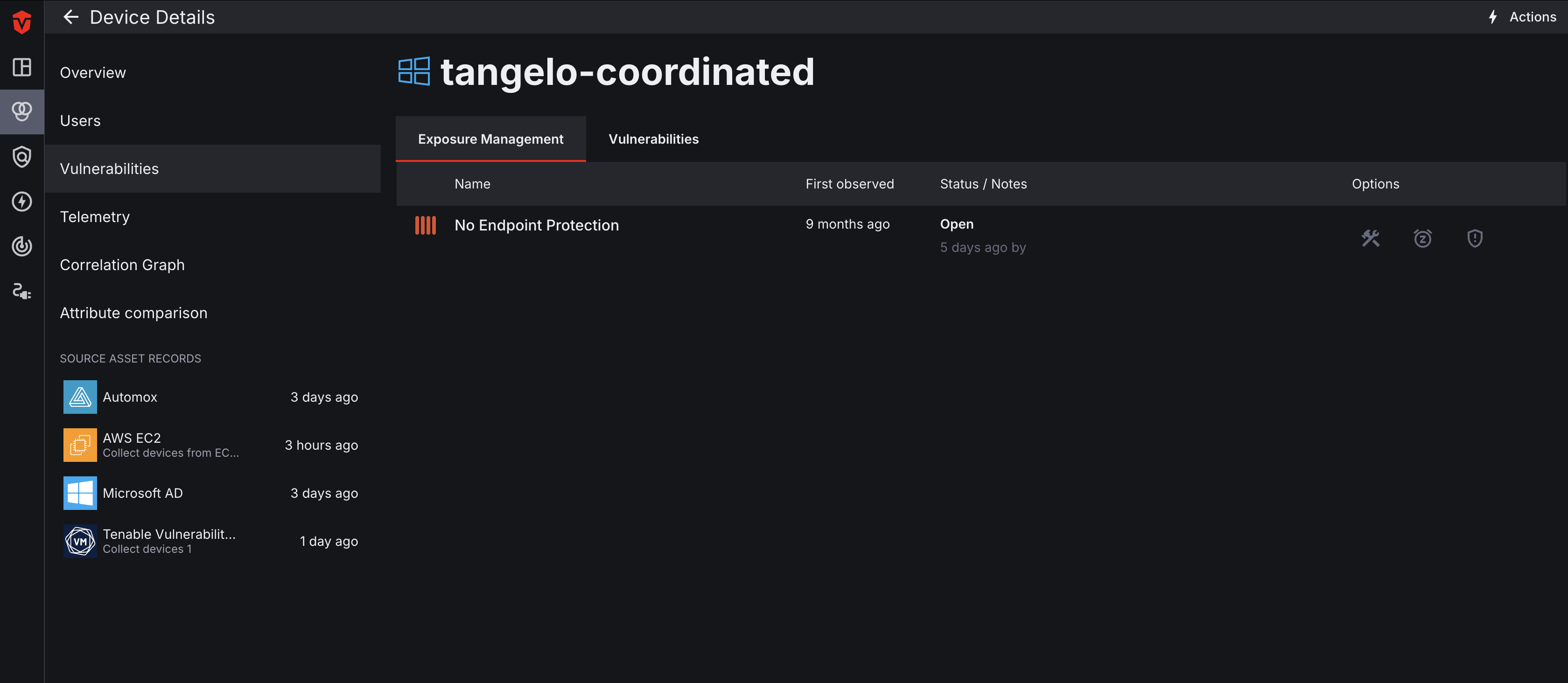
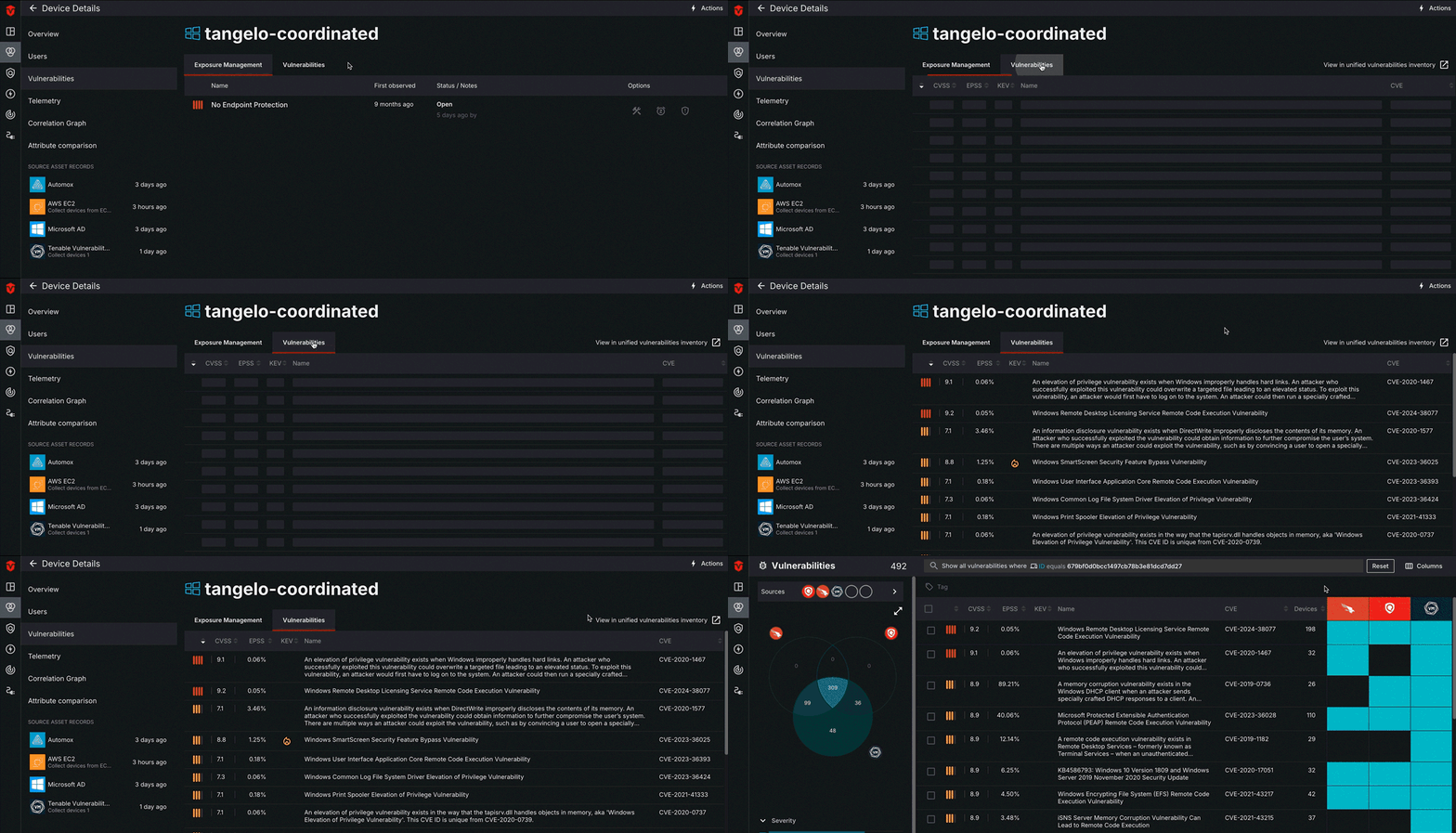
The **Vulnerabilities** tab provides you with a list of all **software vulnerabilities**. Click on a vulnerability name to learn more about it on its **Asset Details** page. You can also select the **View in unified vulnerabilities inventory** link to view all of your vulnerabilities on the **Live Inventory** page.
***
# Telemetry
The **Telemetry** tab tracks an asset at the event level and shows how its attributes have changed over time.
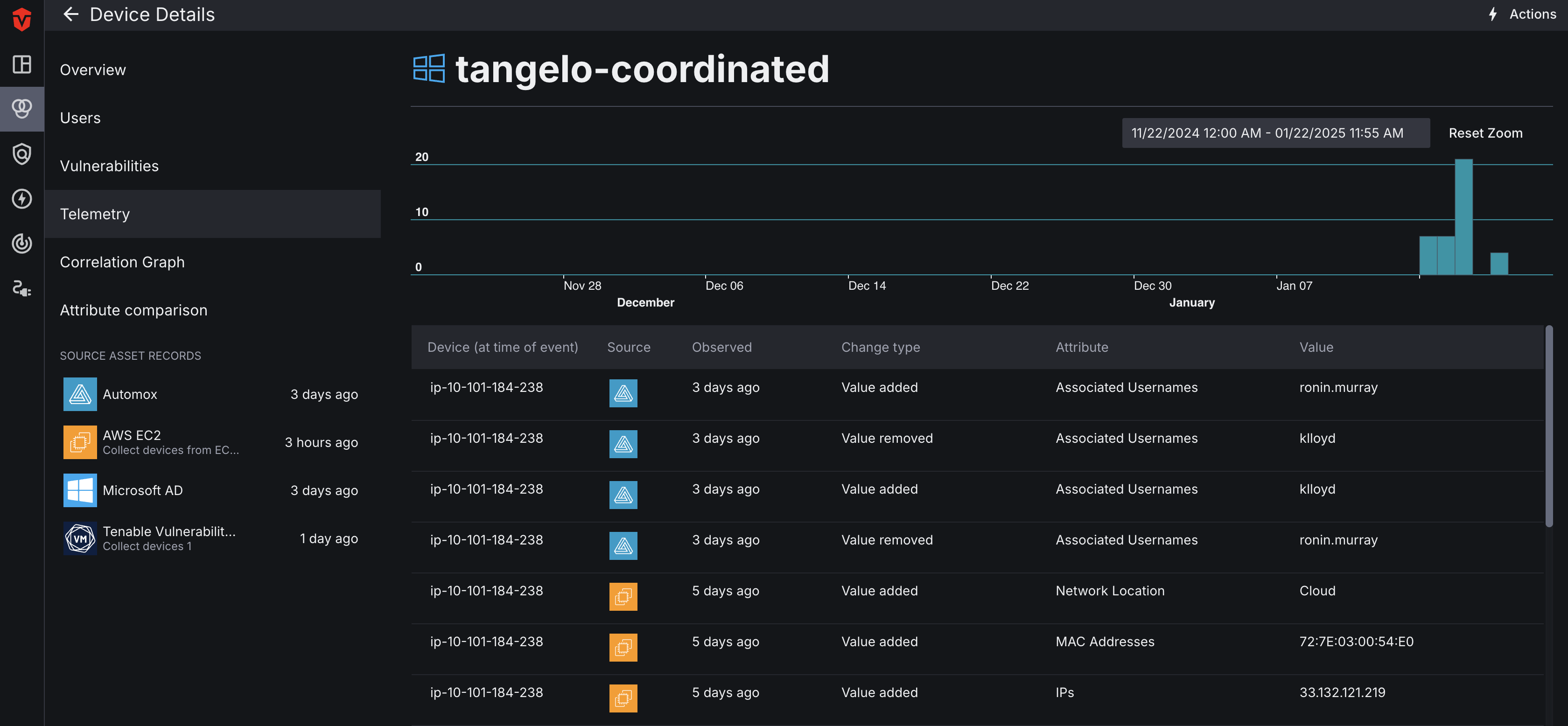
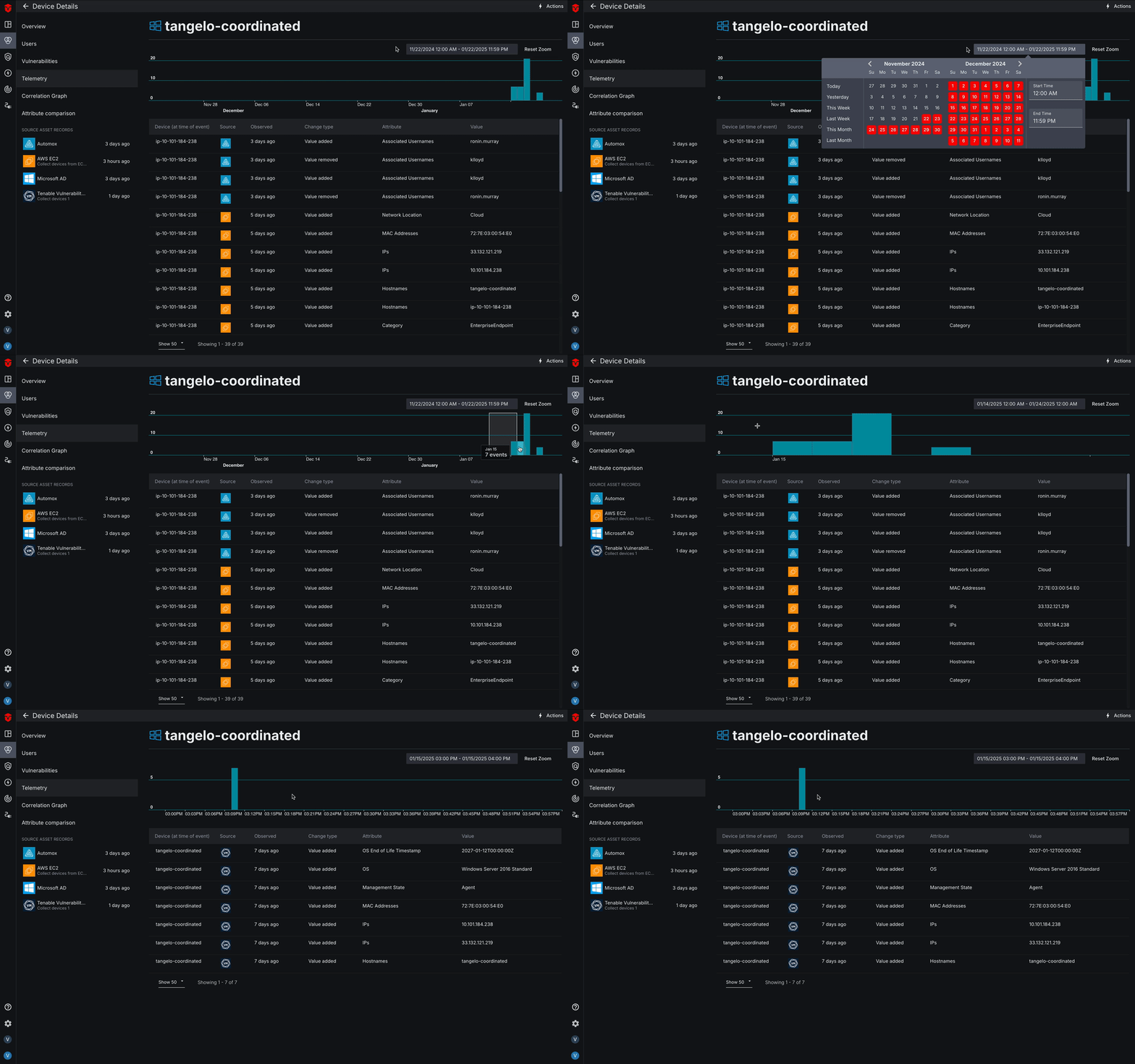
The **Event History** graph provides a visual representation of events that have taken place over time. Use the **date picker** or **click and drag** over a specific section of the graph to view events within a specific time frame. All events meeting the conditions you've established will be listed in the **Event List** below the graph.
***
# Correlation Graph
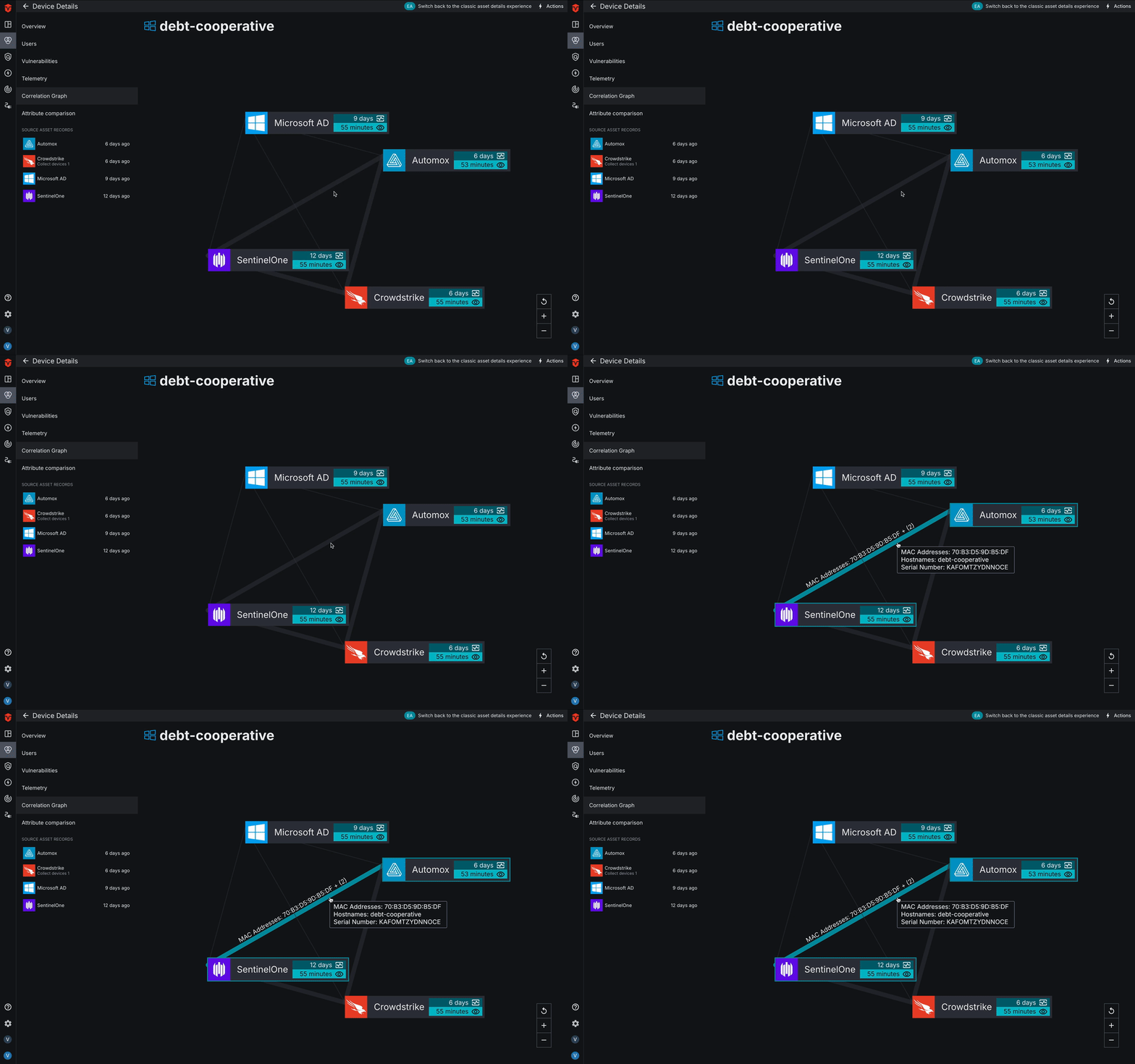
The **Correlation Graph** is a graphical representation of how the Asset Correlation Engine (ACE) built the relationships between source records to identify the unified asset. Users can use this tool to better understand why Device assets are correlated. It may also be used to identify potential correlation issues for Aurora ASM to resolve. Select the **Correlation Graph** tab to access this feature.
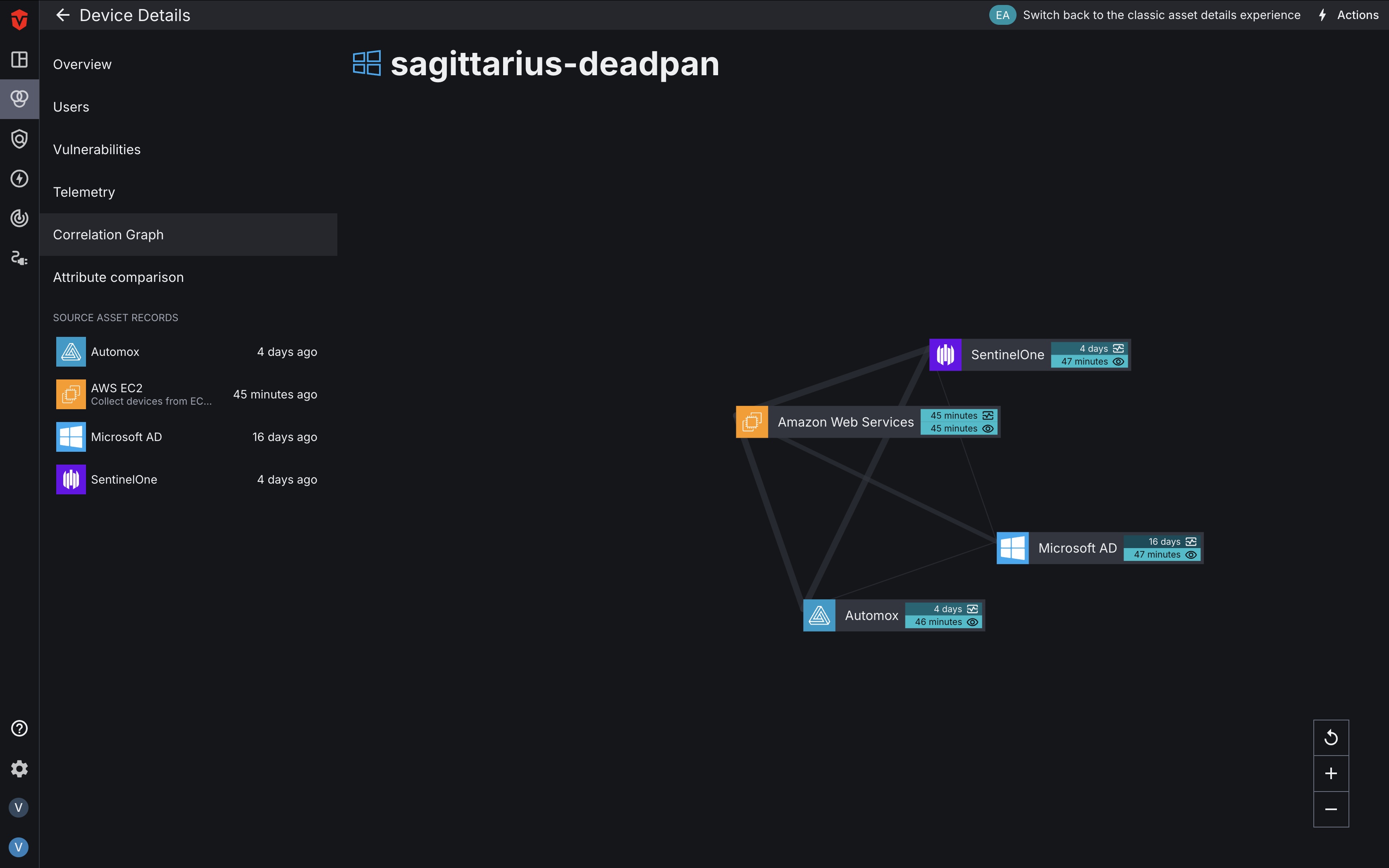
Each **node** corresponds with one of your **Source** asset records along with when it was **Last Observed** ( ) by Aurora ASM, as well as its **Last Activity** (
 ) timestamp according to the Source.

Select a node to view what other Source **asset records** it correlates to. Each **line** represents a correlation (relationship) between two Source asset records.
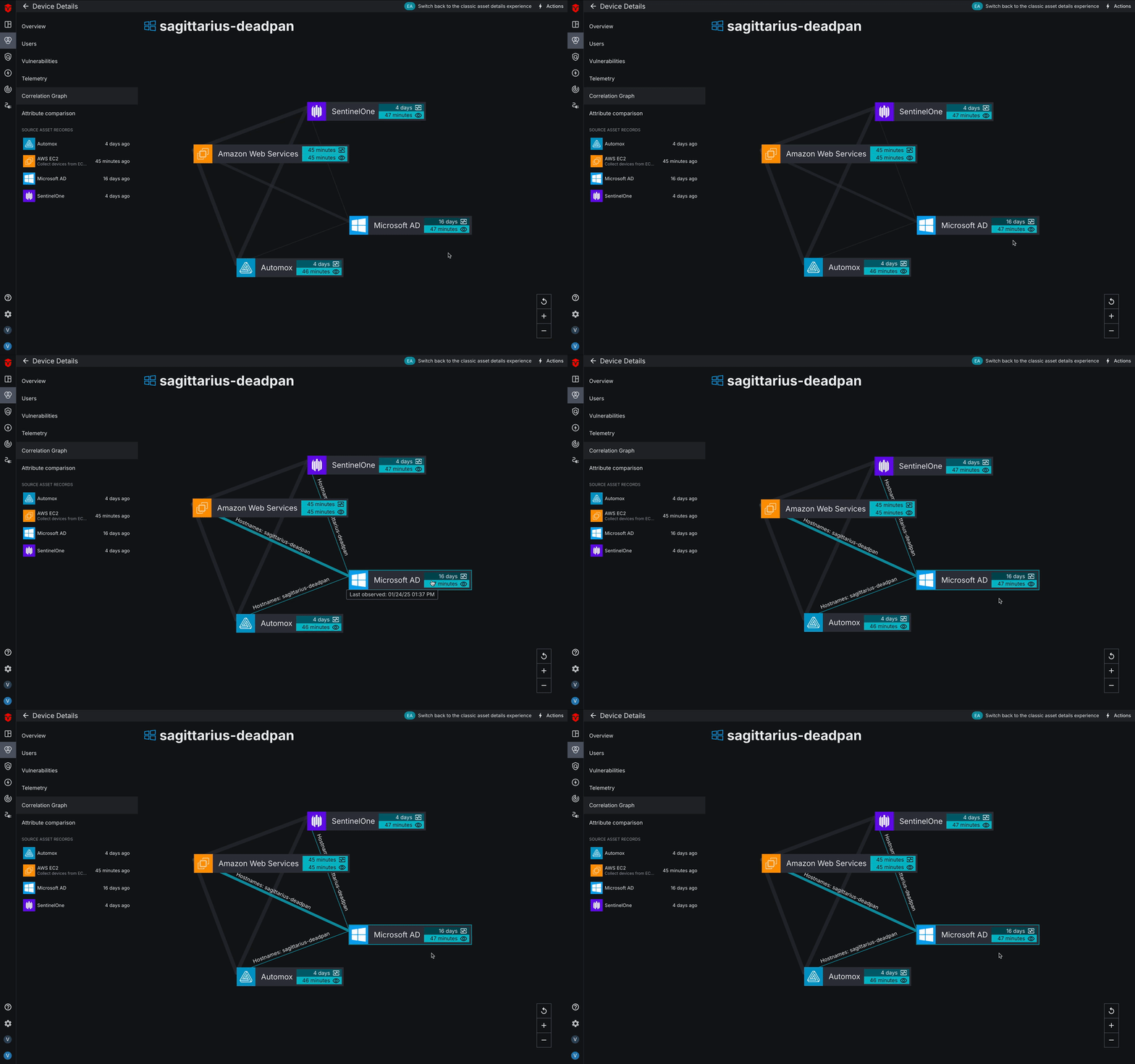
Hover over a **line** to view the correlating attributes between asset records that identified them as being the same asset.
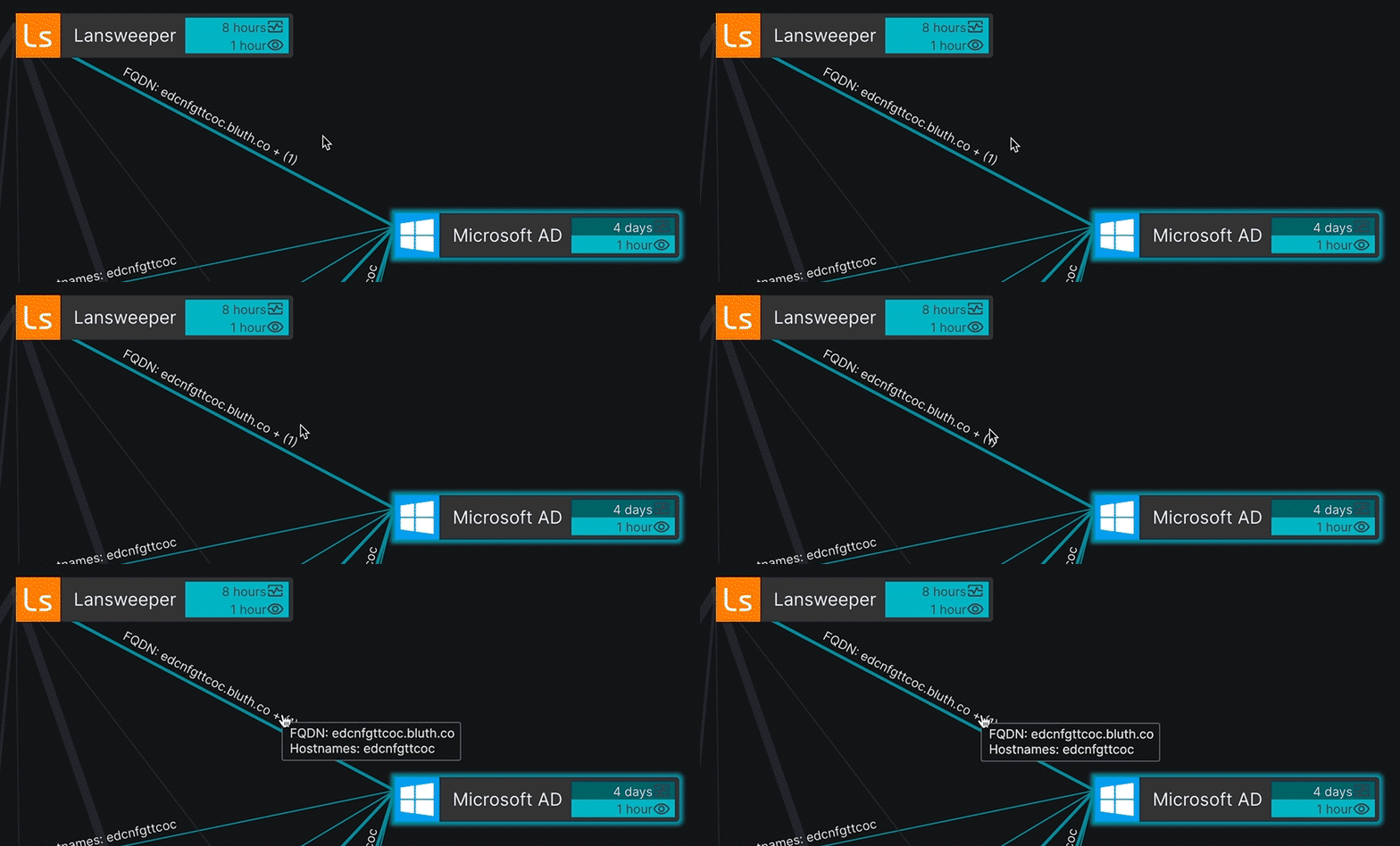
Line **thickness** represents the level of confidence in a correlation. Thicker lines indicate a higher confidence level while thinner lines indicate a lower confidence level.
* A higher number of attribute correlations increases confidence.
* Attribute type also impacts confidence levels. For example, a **MAC Address** correlation generally increases confidence more than a **Hostname**.
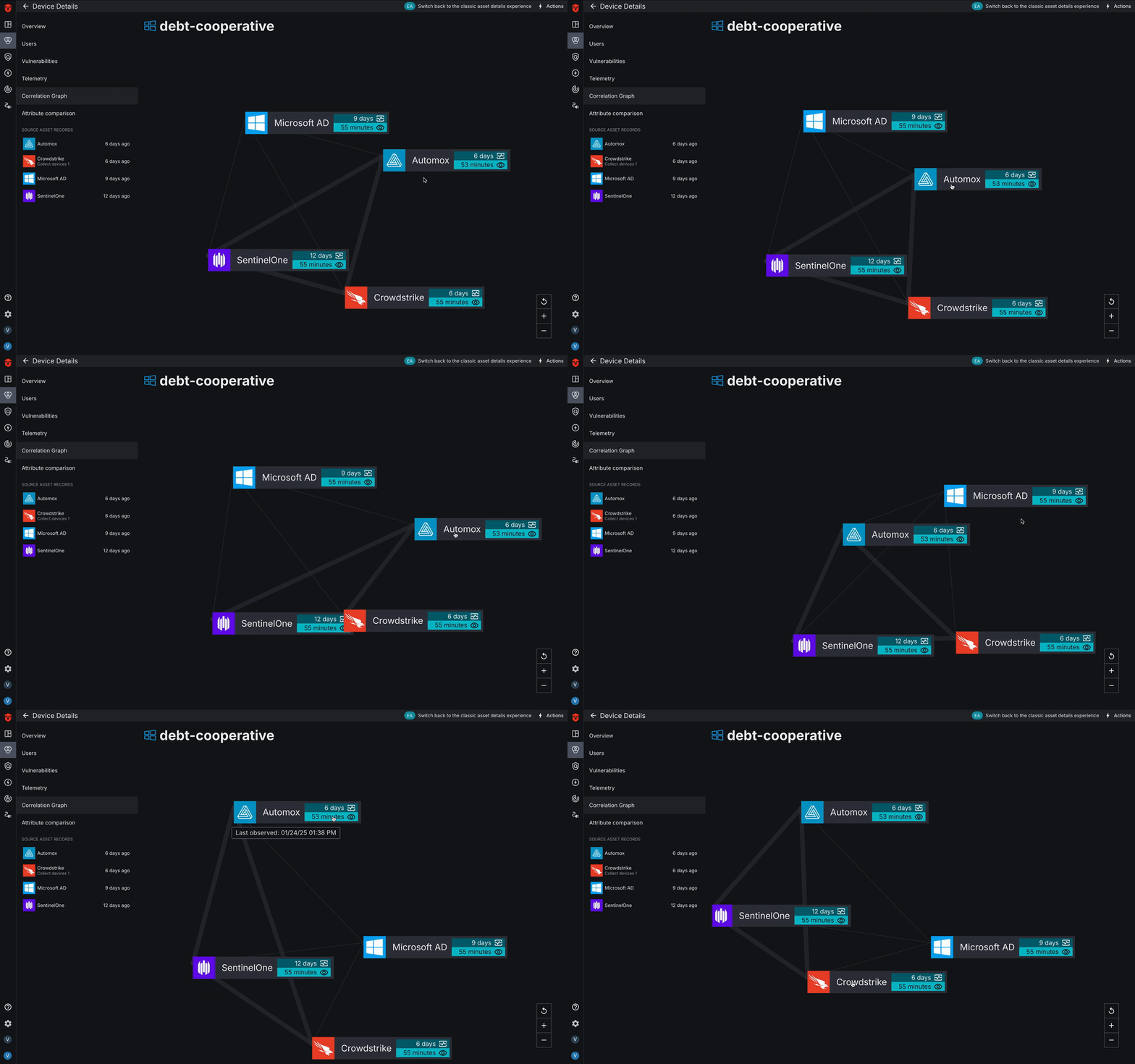
Click and drag a **node** to change its position. The Correlation Graph is responsive and will adjust other nodes accordingly.
***
# Attribute Comparison
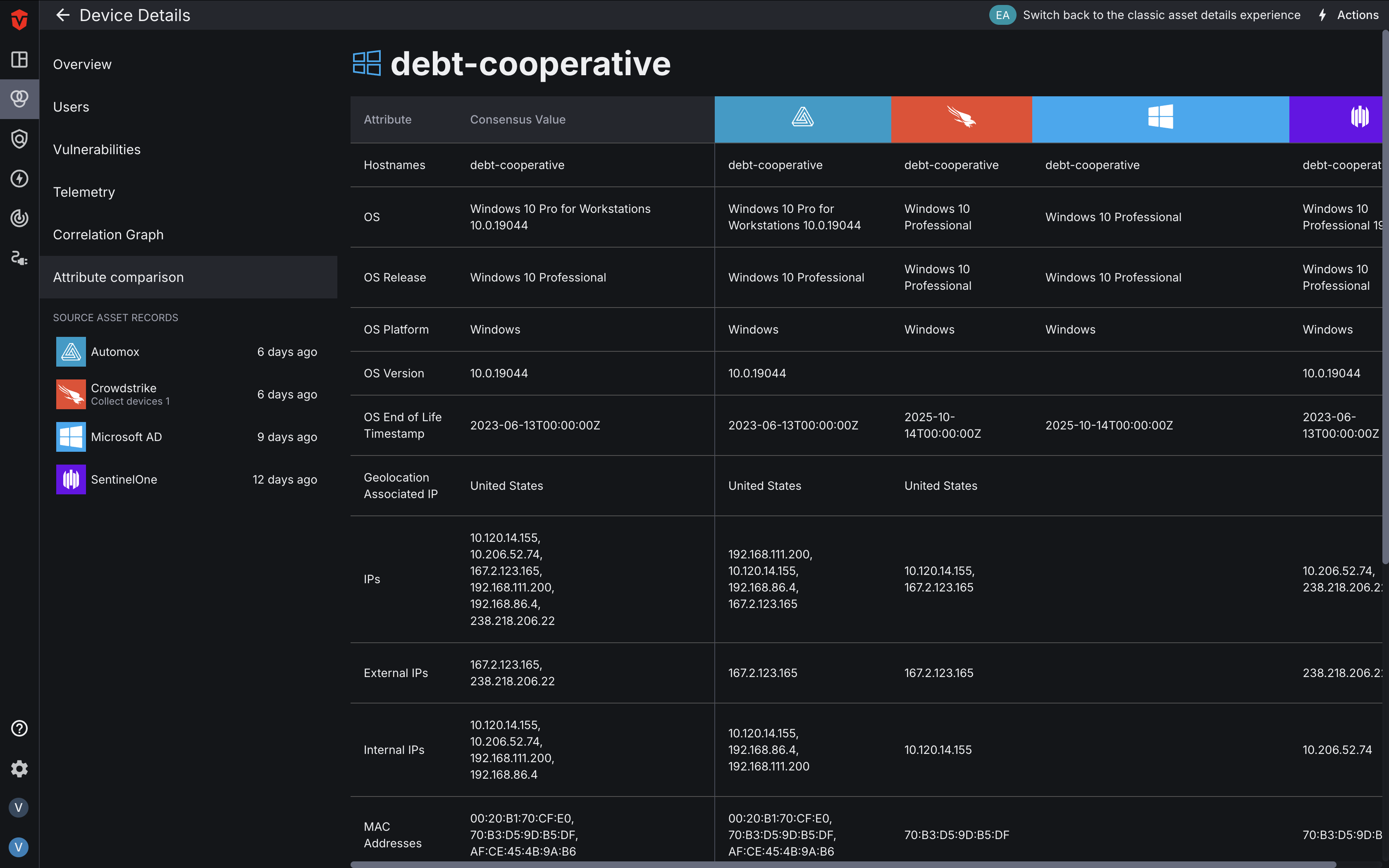
The **Attribute Comparison** tab allows you to compare attribute values reported by each of your **Sources**. Attribute **names** are listed in the far-left column of the attribute chart with each attribute value reported by one of your Sources being listed in its respective column. The **Consensus Value** column lists the **unified** attribute value that Aurora ASM has determined using data from your Sources.
***
# Source Asset Records
**Note:** This section only covers **Source Asset Records** for **User** and **Device** assets. Information in this section will differ for vulnerabilities.
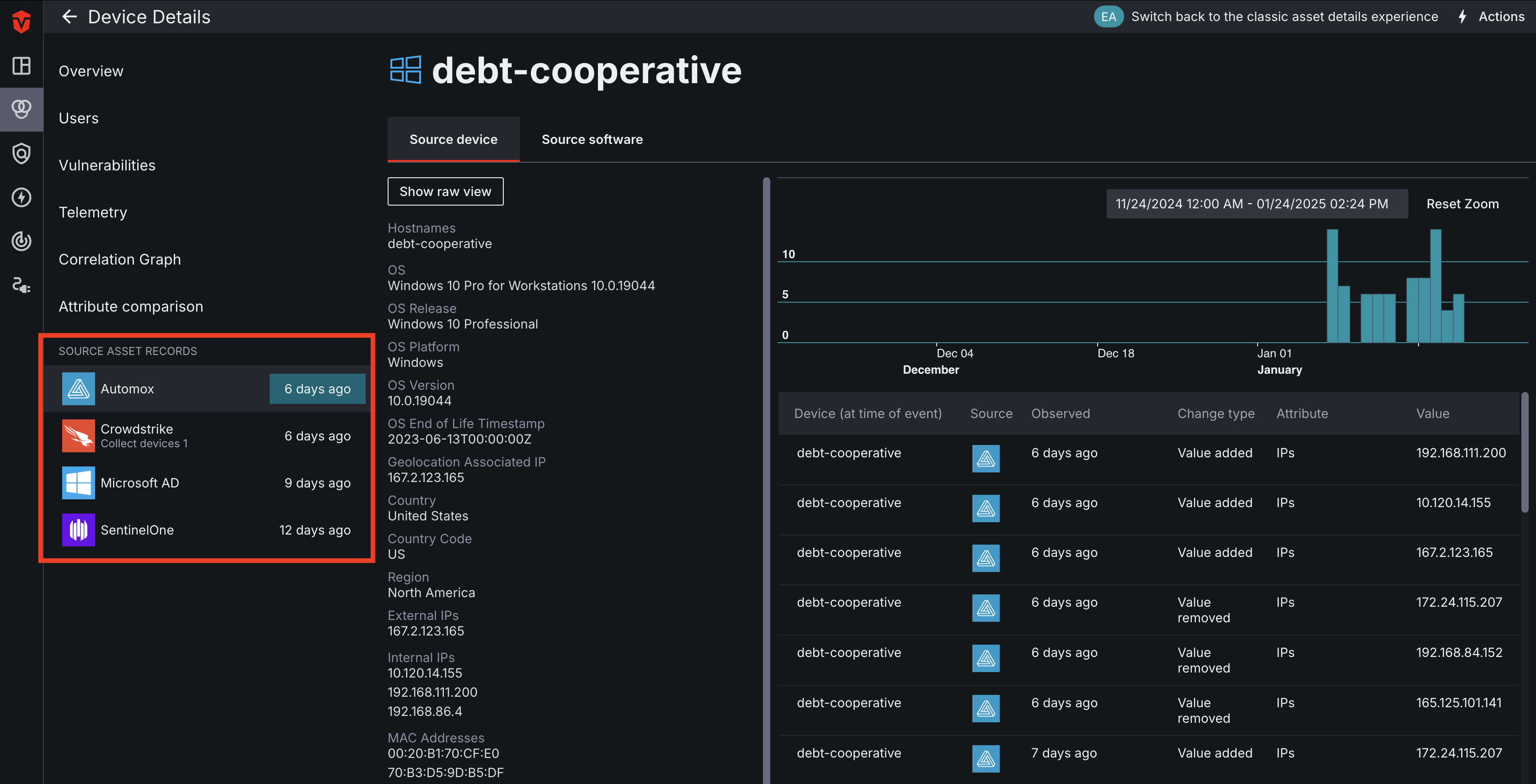
**Source Asset Records** provide you with information about your asset as it is being reported by a particular Integration. Select an Integration to learn more about the data it has collected.
## Source Telemetry
The **Event History** graph and table to the right of your Source attributes list allow you to view any **telemetry events** associated with that asset by Integration. This feature functions very similarly to the Event History section of the **Telemetry** page as well as the [Telemetry](#telemetry) tab on the Asset Details page.
### Asset History
**Asset History** functionality is only available for **Devices** at this point in time.
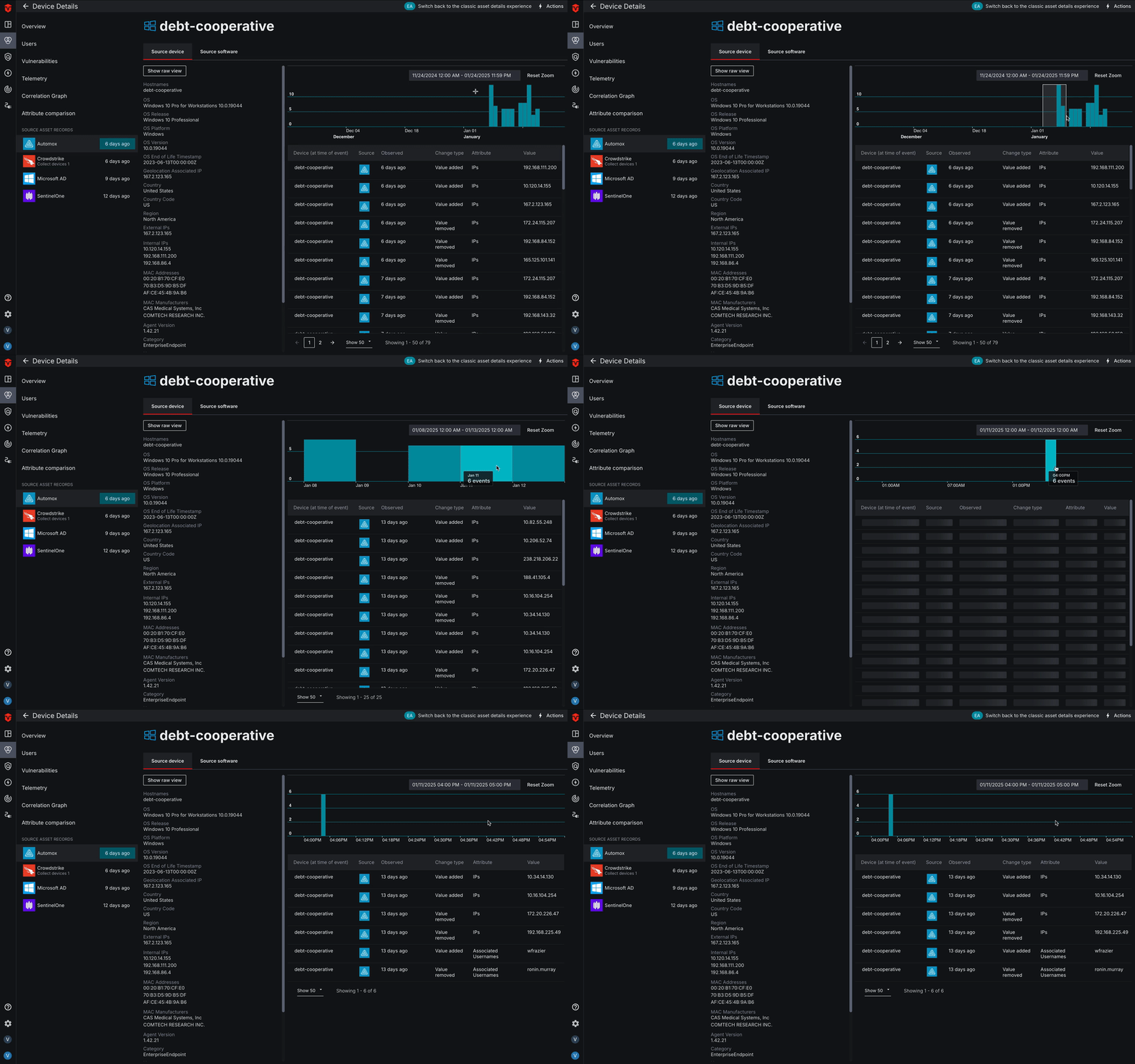
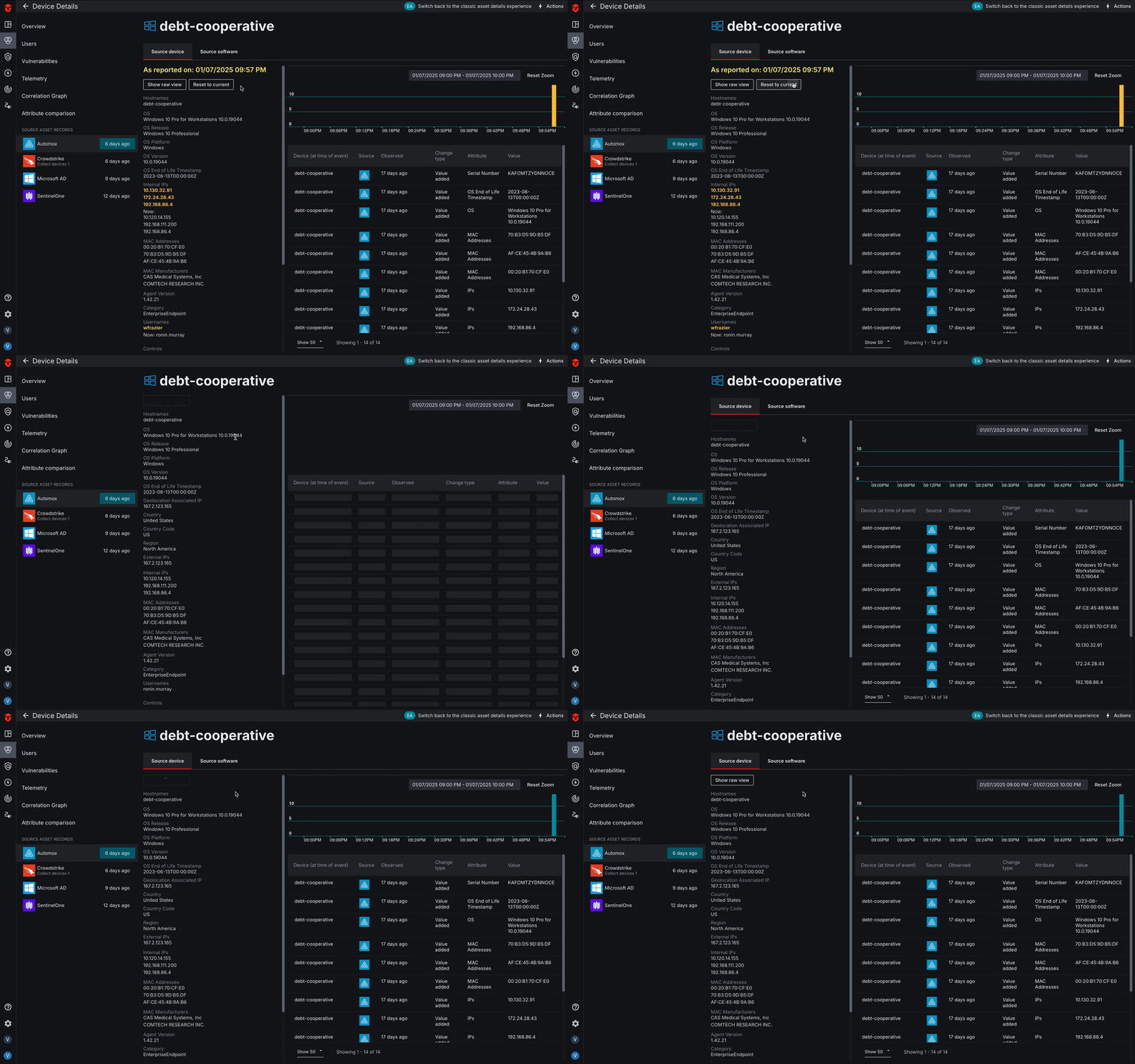
The Source Telemetry **Event History** graph has an additional **Asset History** feature for **Devices**. This feature allows users to compare the current **attribute values** of a device against values captured in past telemetry **events**.
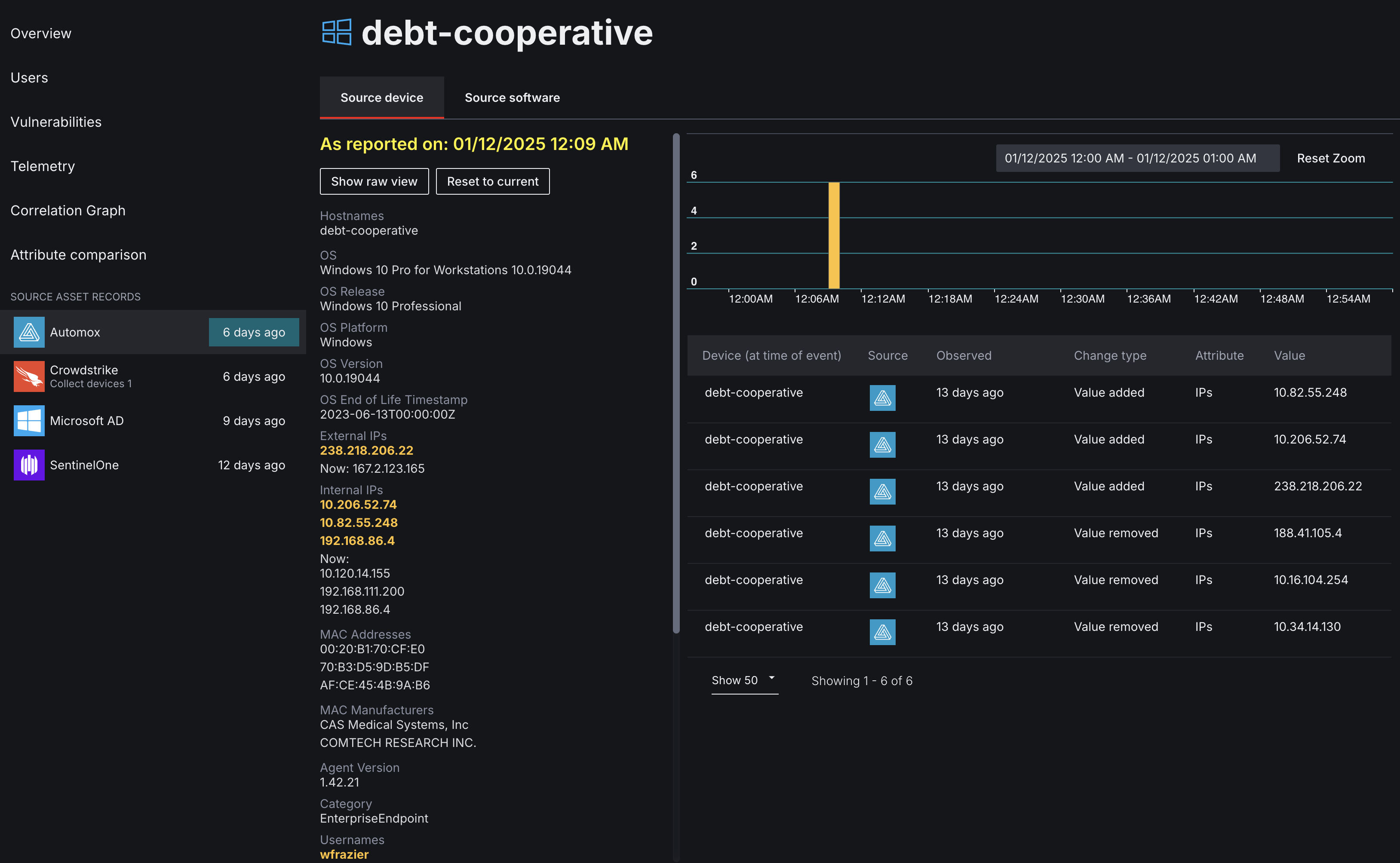
Telemetry events can be captured as frequently as every minute. As such, it may take several clicks to get to the event you are interested in viewing.
Select the **bar** on the timeline that corresponds with the **day** of the event you would like to review. Next, the **hour** followed by the exact **minute** it took place.
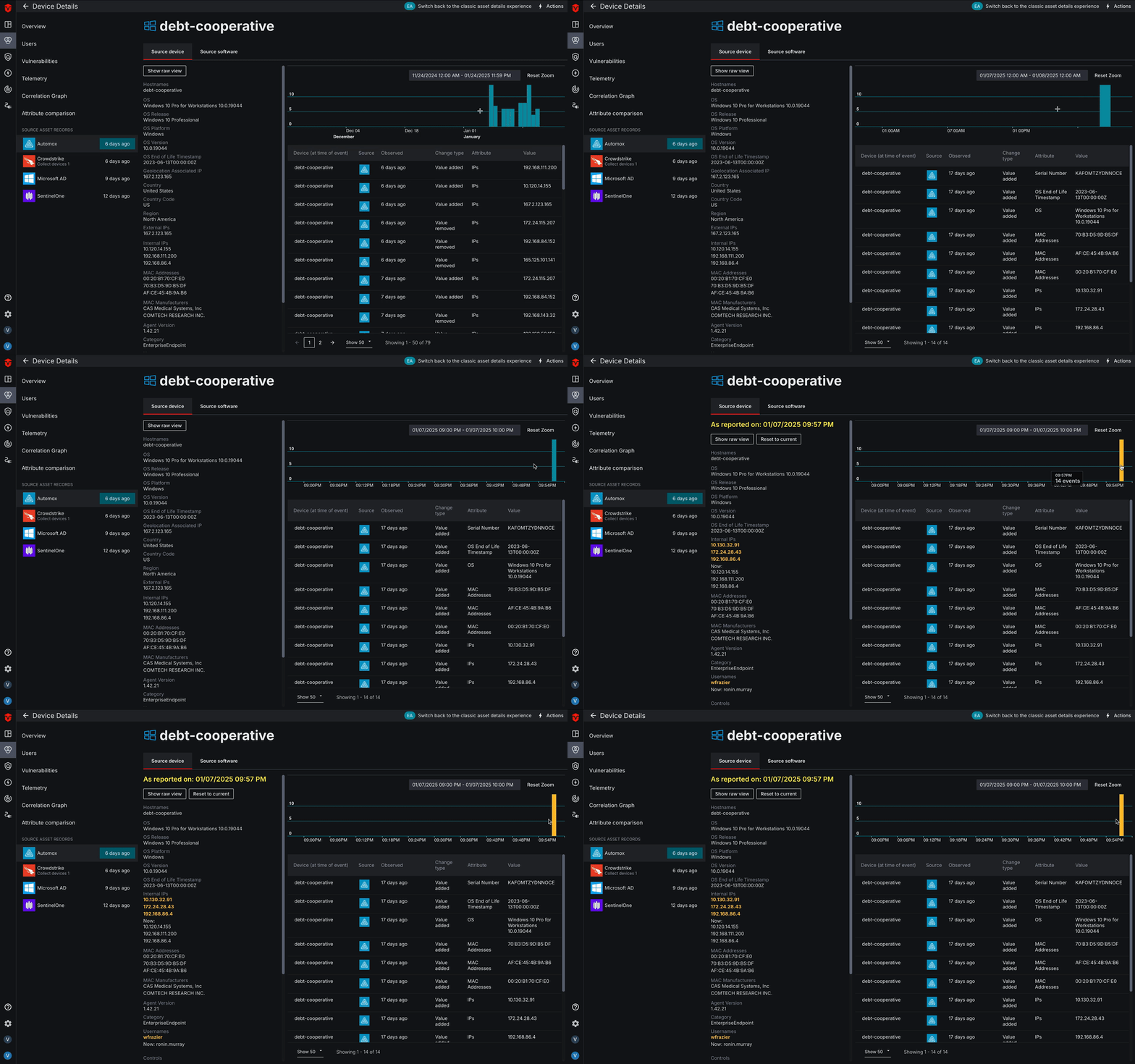
Once the event has been selected, its timeline bar will turn **yellow** and a **timestamp** will appear in the header. Past data that differs from current data will also be displayed in **yellow**.
Take the image below, for example, where we can see that the **Internal IP** reported on `01/07/2025 09:57 AM` differs from the Internal IP currently associated with the device.
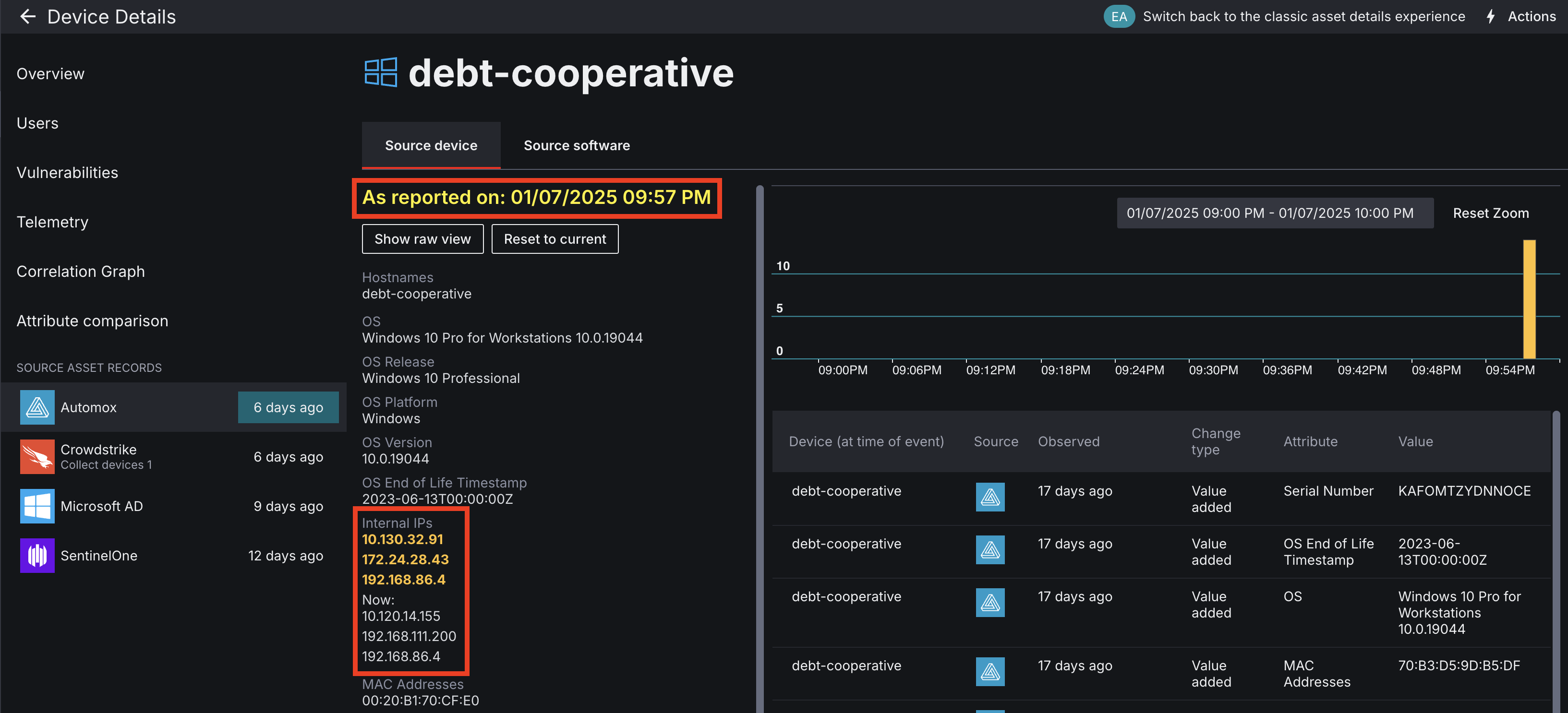
Once you have finished viewing a snapshot, you can reset the timeline by selecting the **Reset to current device** button.
## Source Software
**Note:** **Software** integrations must be configured in the same **Source Configuration** as your **Device** integrations for software data to appear in this tab.
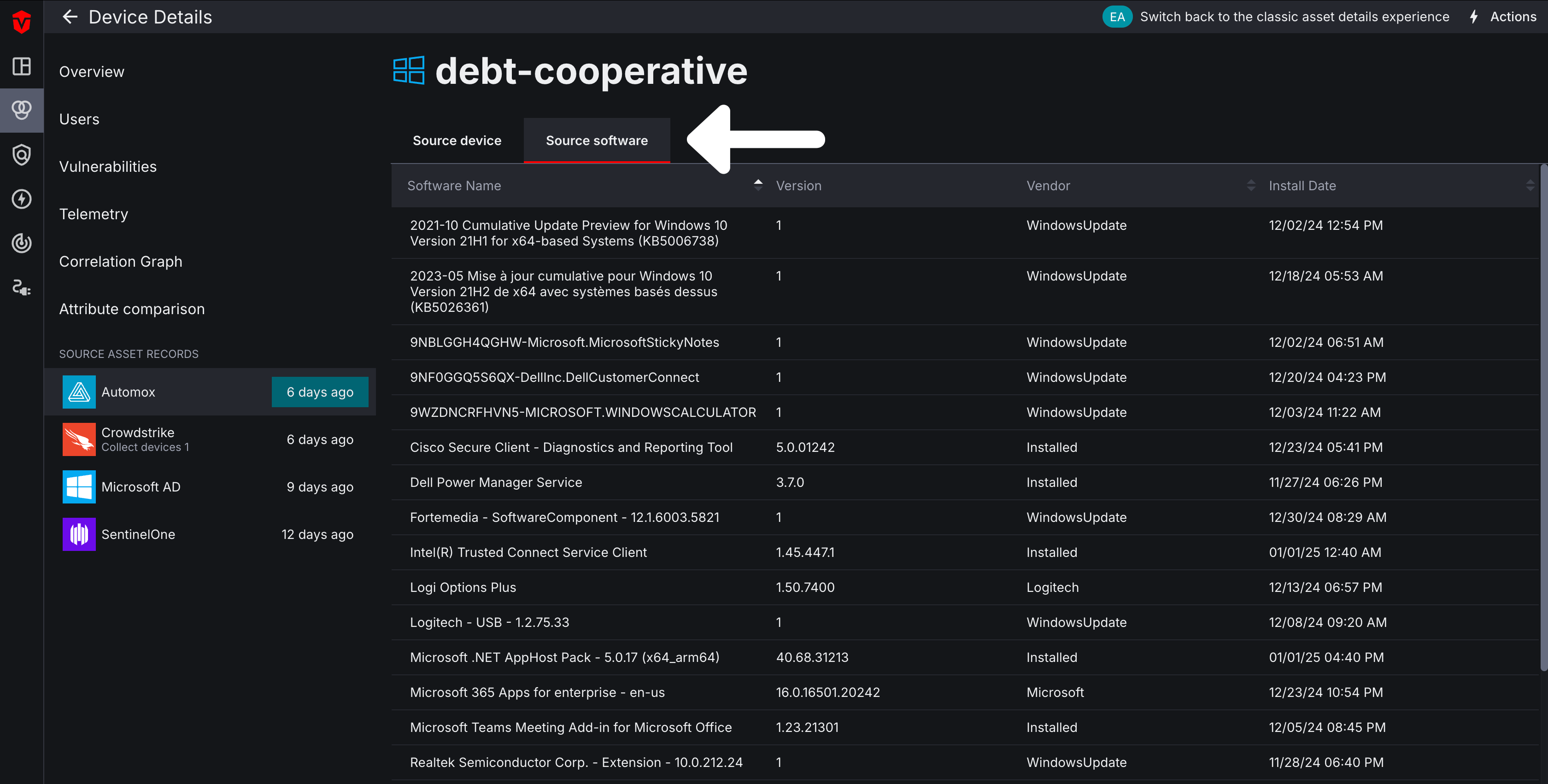
Integrations that have been configured to collect **Software** assets will have an additional **Software** tab. Select this tab to view a complete list of software associated with a **Device**.
*Click here to learn more about **Software** assets.*
## Source Vulnerabilities
**Note:** **Vulnerability** integrations must be configured in the same **Source Configuration** as your **Device** integrations for vulnerability data to appear in this tab.
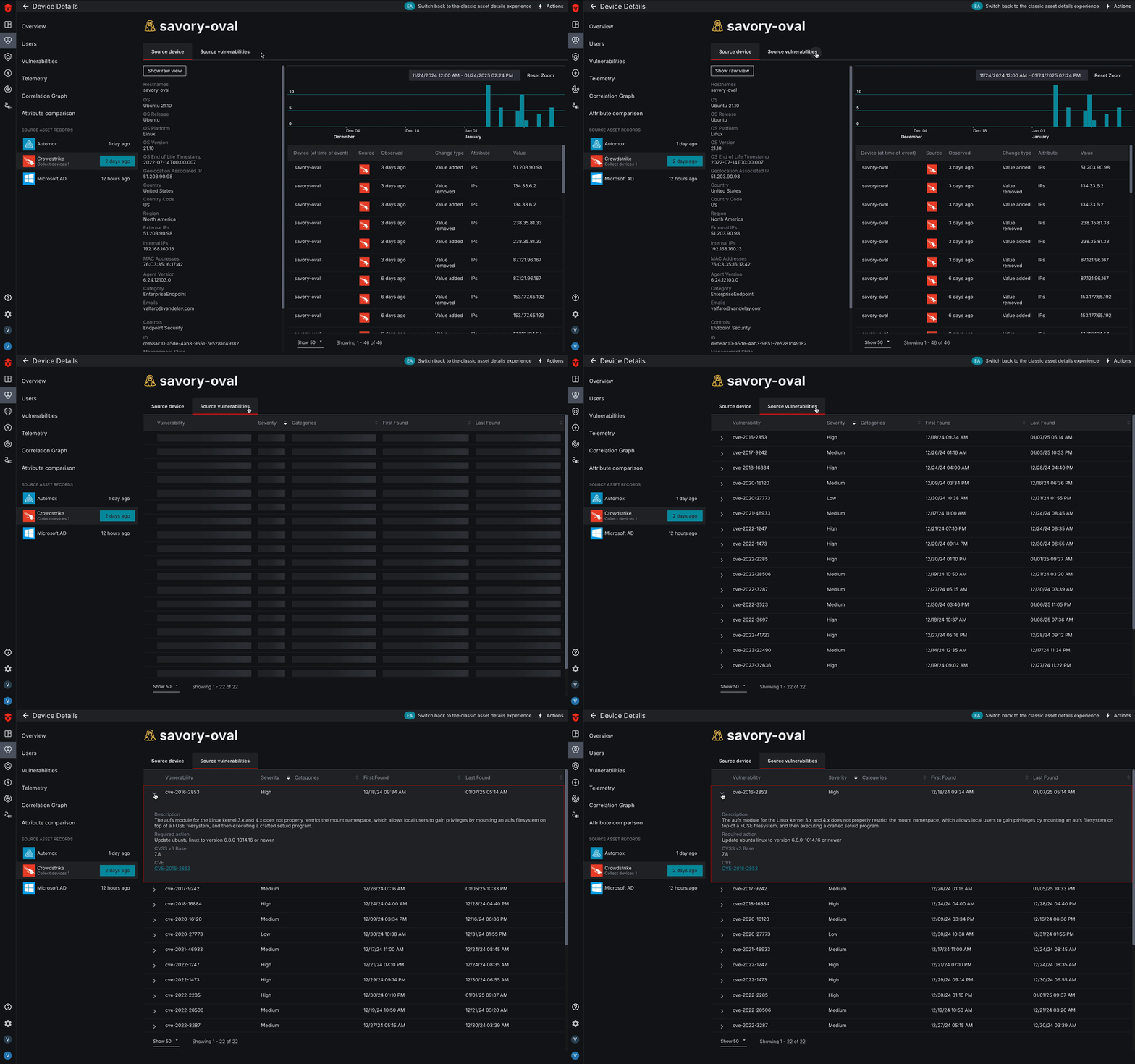
Source Integrations that track **vulnerabilities** will have an additional **Source Vulnerabilities** tab. Select this tab to view a complete list of vulnerabilities for a **Device**.
*Click here to learn more about **Vulnerability** assets.*
## Raw Data View
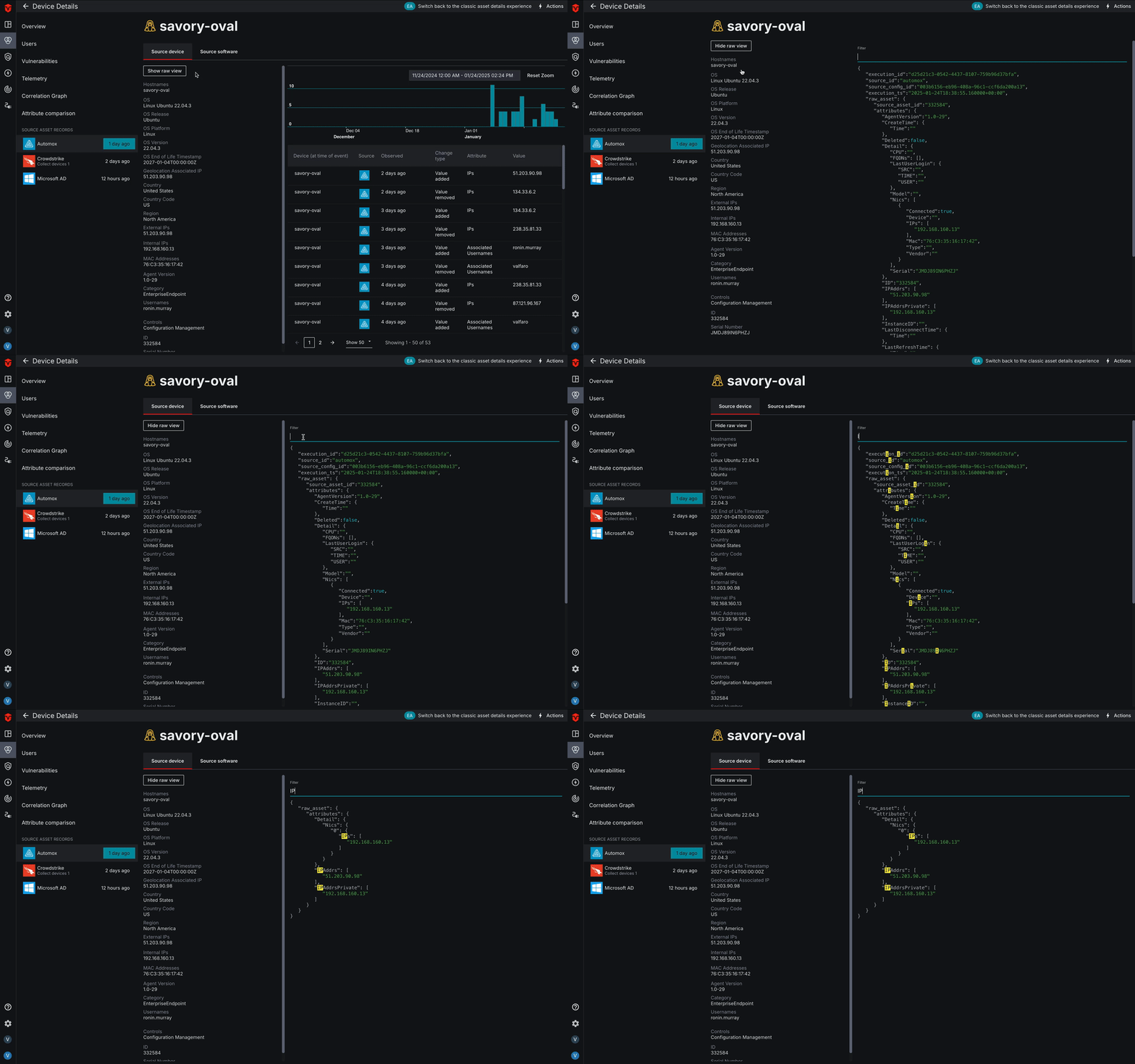
Some Integrations allow you to view and search through **raw data** in addition to the Source attribute data that they provide. Select the **Show raw view** button to view raw data pulled from an Integration. From there, you can use the **Filter** field to search for specific information.