---
updatedAt: 2026-05-01T03:31:26.000Z
agentTools:
projectIndex: https://docs.sev.co/llms.txt
---
# Managing Tracked Queries
# Overview
The **Tracked Queries** page tracks specific queries over time. It features a handful of **Global Queries** that can be viewed by anyone in your Organization. Additionally, you may also add custom queries to the **My Queries** and **Org-wide Queries** lists.
On the left, you can find the total number of assets currently associated with a query. The **timeline** on the right provides insight into asset totals from previous days. Hover over a query's timeline to view asset totals for a specific day.
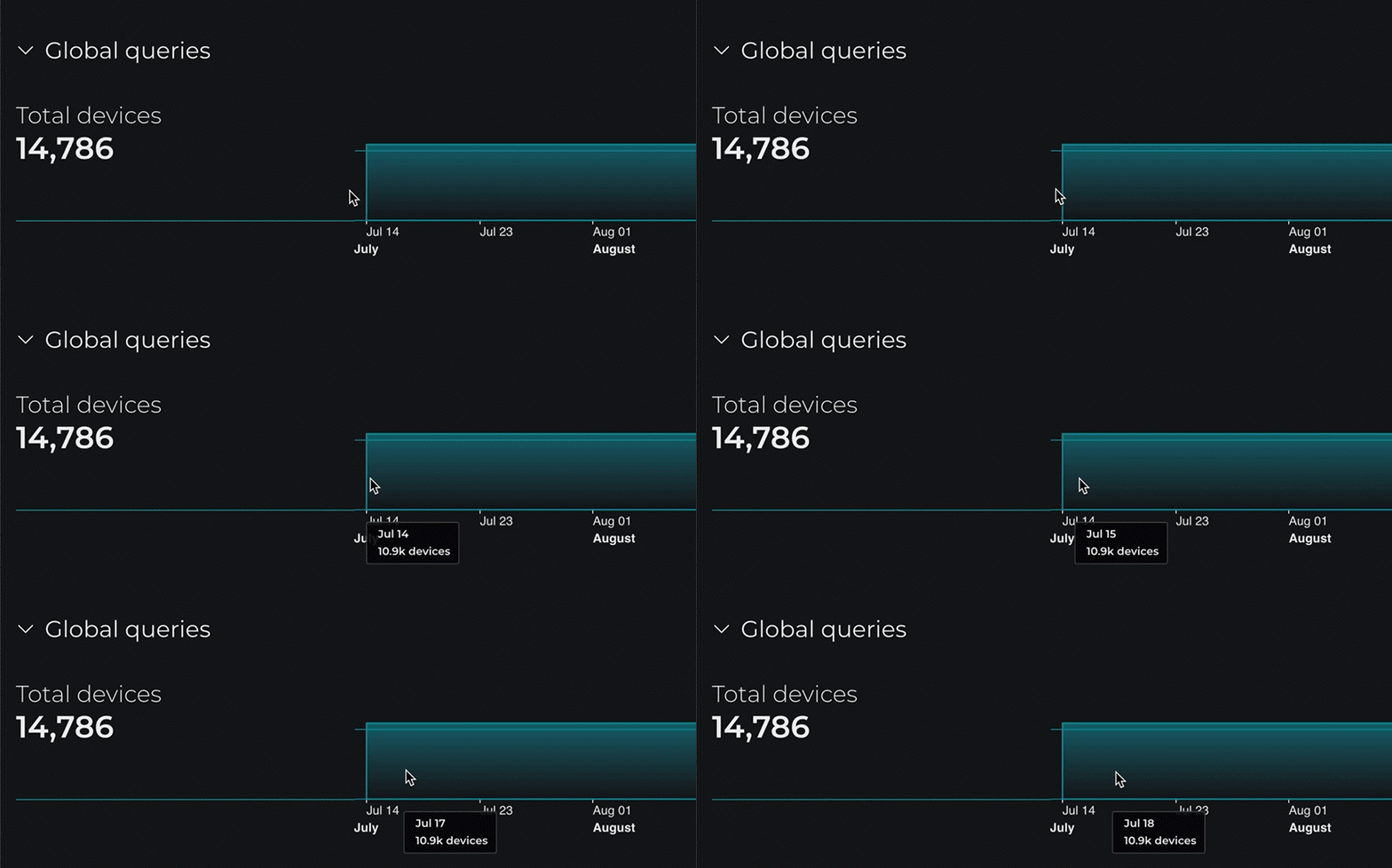
To add a custom query to this page, you will need to save it and set up **actions** for it in one of the **Live Inventory** pages. Please review the instructions in the following section of this document for completing this process.
***
# Adding a Query to the Tracked Queries Page
> ℹ️
> **Note:** Queries saved on the Vulnerabilities Live Inventory page will have both **Distinct Live Vulnerabilities** and **Live Vulnerability Instances** tracked on the Tracked Queries page, resulting in two separate query graphs being displayed.
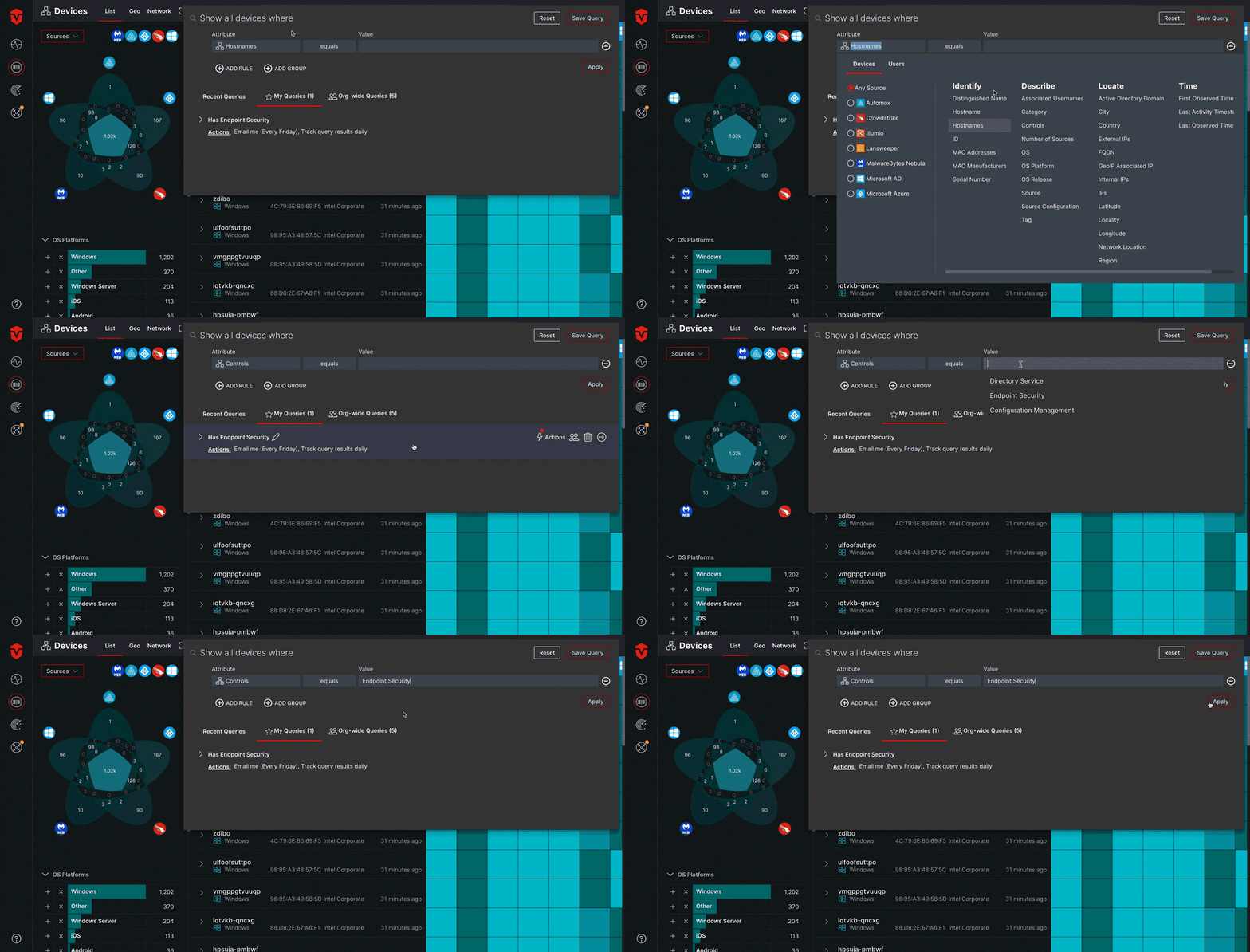
To begin adding a query to the **My Queries** or **Org-wide Queries** sections of the **Tracked Queries** page, you will need to build a query in one of the **Live Inventory** pages.
## Saving a Query
Once your query has been built, you can save it by selecting the **Save Query** button in the top-right corner of the **query builder** to add it to the **My Queries** or **Org-wide Queries** tab.
* Queries saved to the **My Queries** list are only viewable to you.
* Queries saved to the **Org-wide Queries** list are viewable to all members in your Organization.
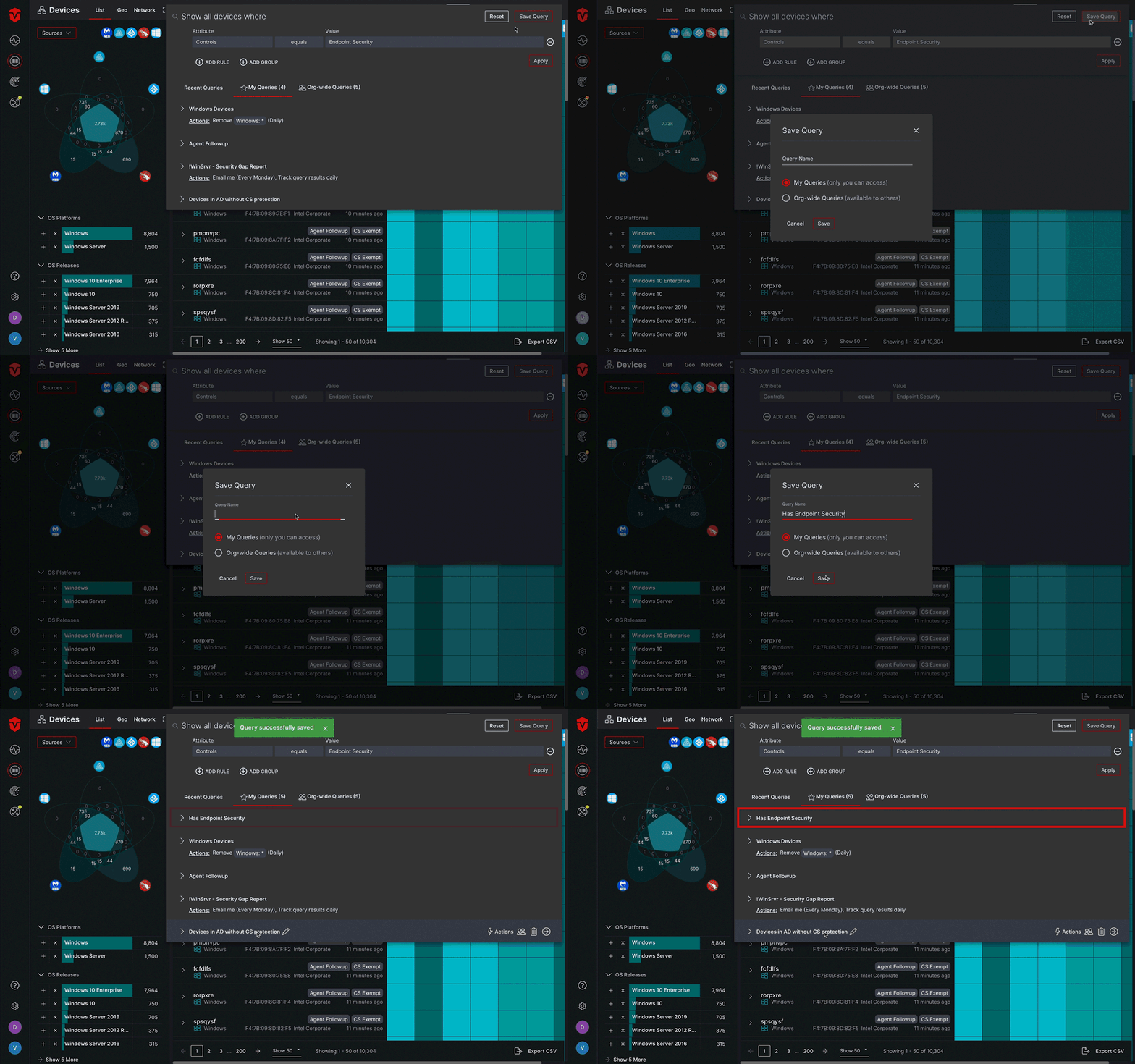
If you've already run your query, you can save it from the **Recent Queries** tab. Hover over the query you'd like to save and select the **Save** button to add it.
## Configuring Query Actions
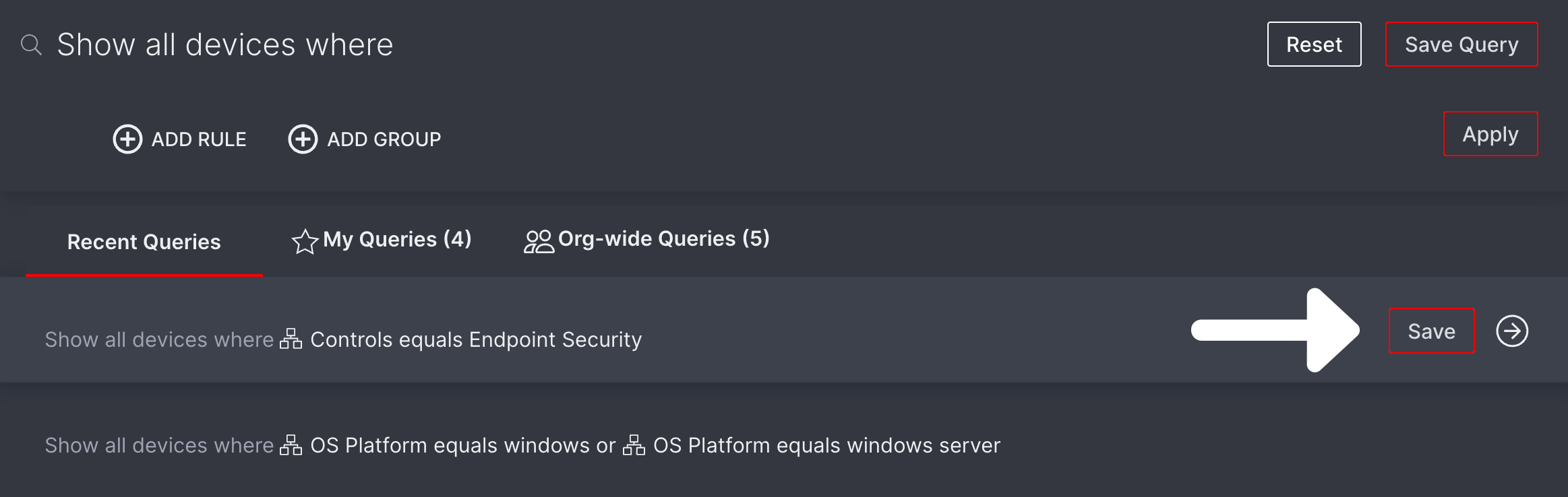
Once your query has been saved, you will need to configure actions for it.
From its corresponding tab, select the **Actions** link that corresponds to the query you would like to begin tracking.
A popup will appear. Select the **Track query results** checkbox.
Once you've selected the checkbox, a *"Saved query action successfully created"* message will appear at the top of the screen to confirm that your query has been added to the **Tracked Queries** page.
From here, you can return to the **Tracked Queries** page and verify that the query has been added.
> ℹ️
> **Note:** After a query has been added to the **Tracked Queries** page, it can take up to **24hrs** for data to begin populating.
***
# Removing a Query from the Tracked Queries Page
> ℹ️
> **Note:** **Distinct Live Vulnerability** and **Live Vulnerability Instance** graphs associated with the same query are coupled and can not be removed separately.
To delete a query from the **Tracked Queries** page, simply select the **delete** icon ( ) underneath the query's name.
Alternatively, you may also remove it in the **Query Builder** by opening the query's **Actions** menu and unchecking the **Track query results** checkbox.