---
updatedAt: 2026-05-01T03:31:26.000Z
agentTools:
projectIndex: https://docs.sev.co/llms.txt
---
# Creating a Ticket Action
# Overview
The **Actions Center** is a tool available to **Admin** users that can be used to send outbound tickets to ticketing platforms, containing information about selected **assets** from a query. You may wish to use this feature to alert your IT staff of any assets that require their attention. **For example:**
* Devices with missing or outdated agents
* Devices running on End-of-Life operating systems
* Devices belonging to a specific subset of employees in your organization
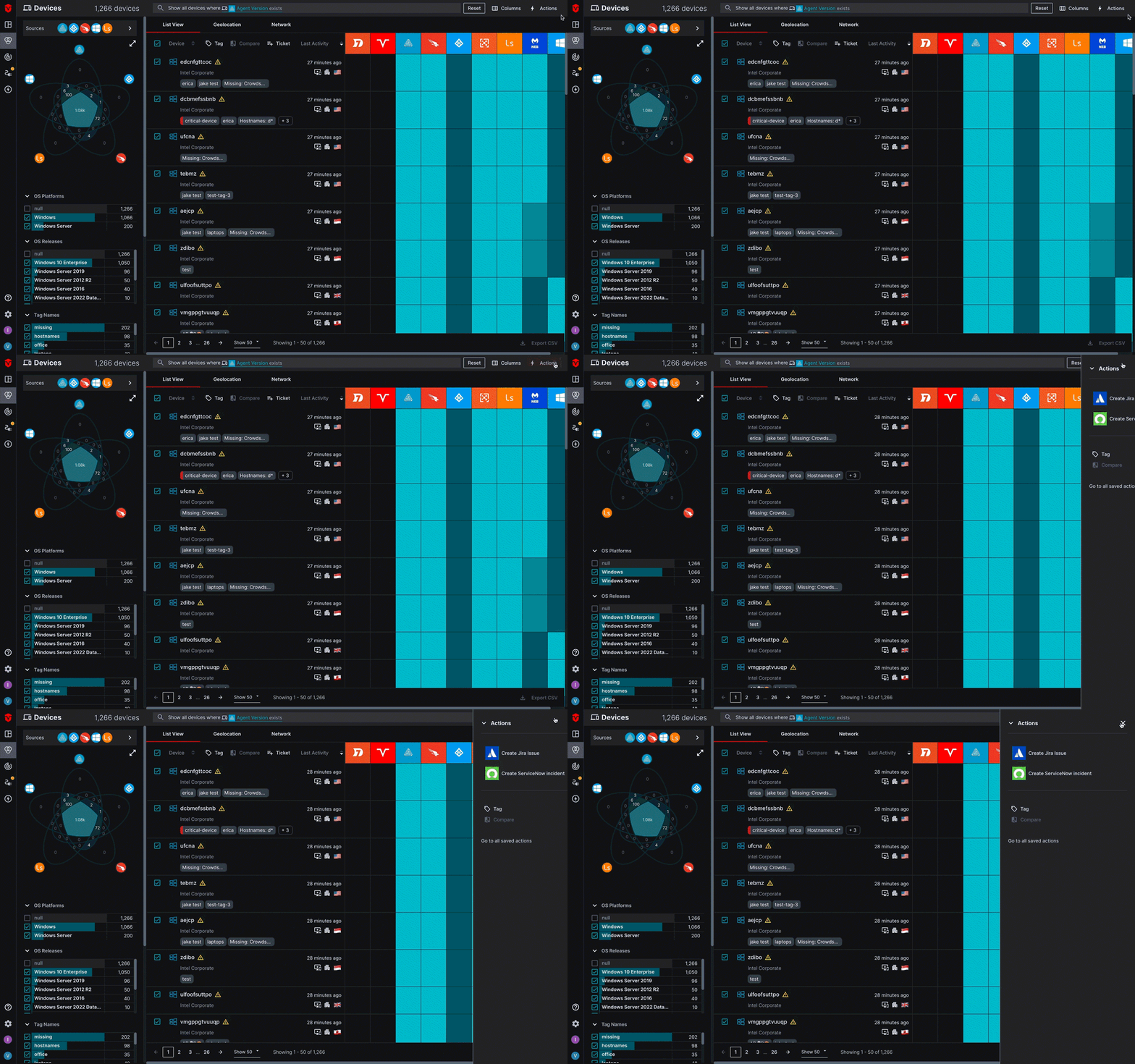
# Creating a Ticket Action
In this section, we will review the necessary steps for creating a **ticket action**.
## 1. Write a Query
> ℹ️
> Please note that a *separate* issue will be sent to your ticketing platform for each **asset** you select from the assets list.
To ensure the correct **assets** are accounted for in your ticket action, you will want to exclude all other assets from the Live Inventory asset list. This can be accomplished by running a query.
In this example we will be querying for Device assets with a `Automox` `Agent Version` that `exists`

Once your query has been run, use the **checkboxes** to select any assets you would like to create issues for.
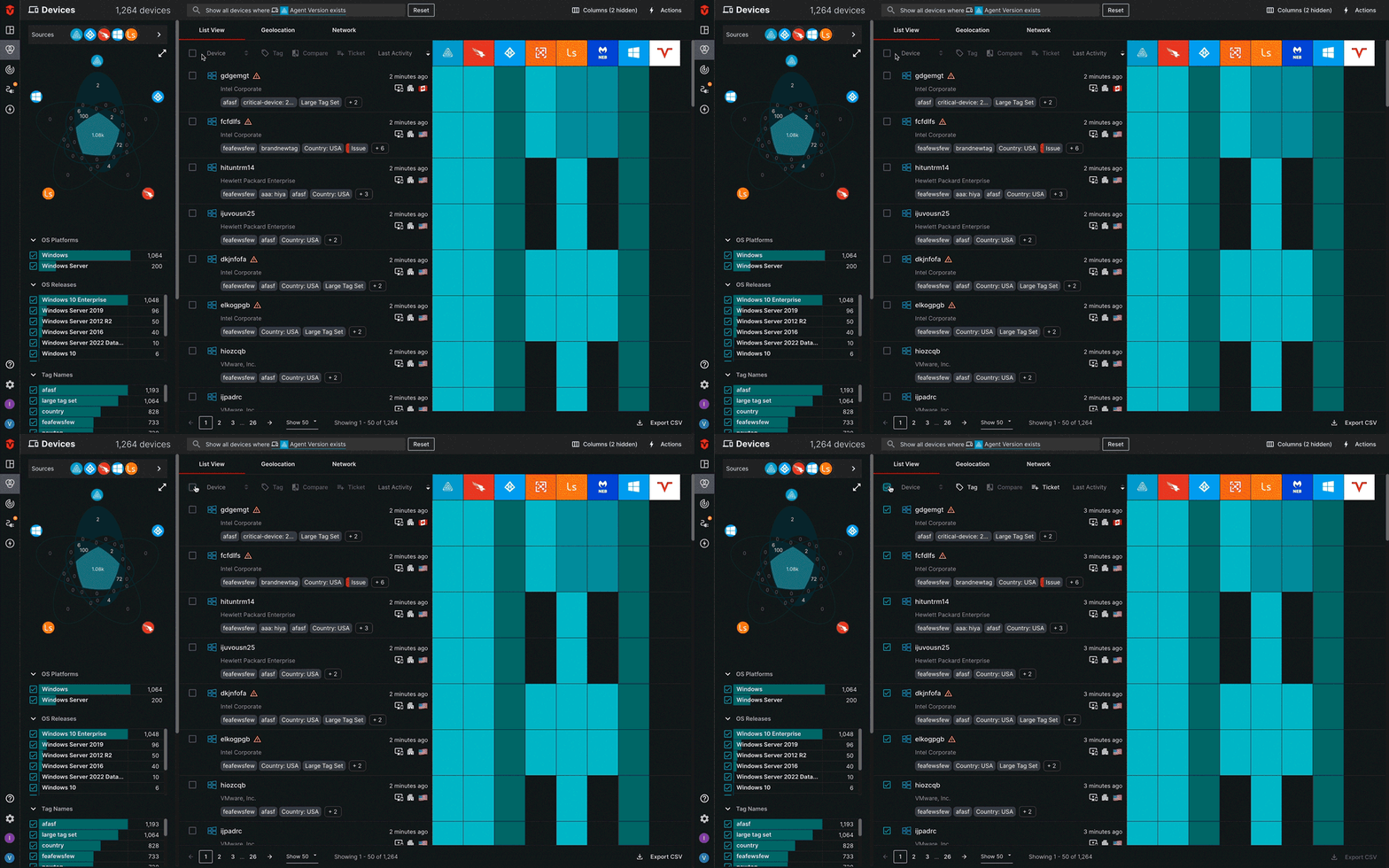
> ℹ️
> If you would like to include more than one page of results, use the **Select all** checkbox in the Action panel
## 2. Select a Ticketing Platform
Once you have run your query and selected your assets, you will be ready to create a ticket action.
Select the **Ticket** link from the **Actions** panel or the **Actions** link in the top-right corner of the page.
A menu will appear on the **right** side of the page with a list of ticketing platforms. Select the ticketing platform you would like to create a ticket action for.
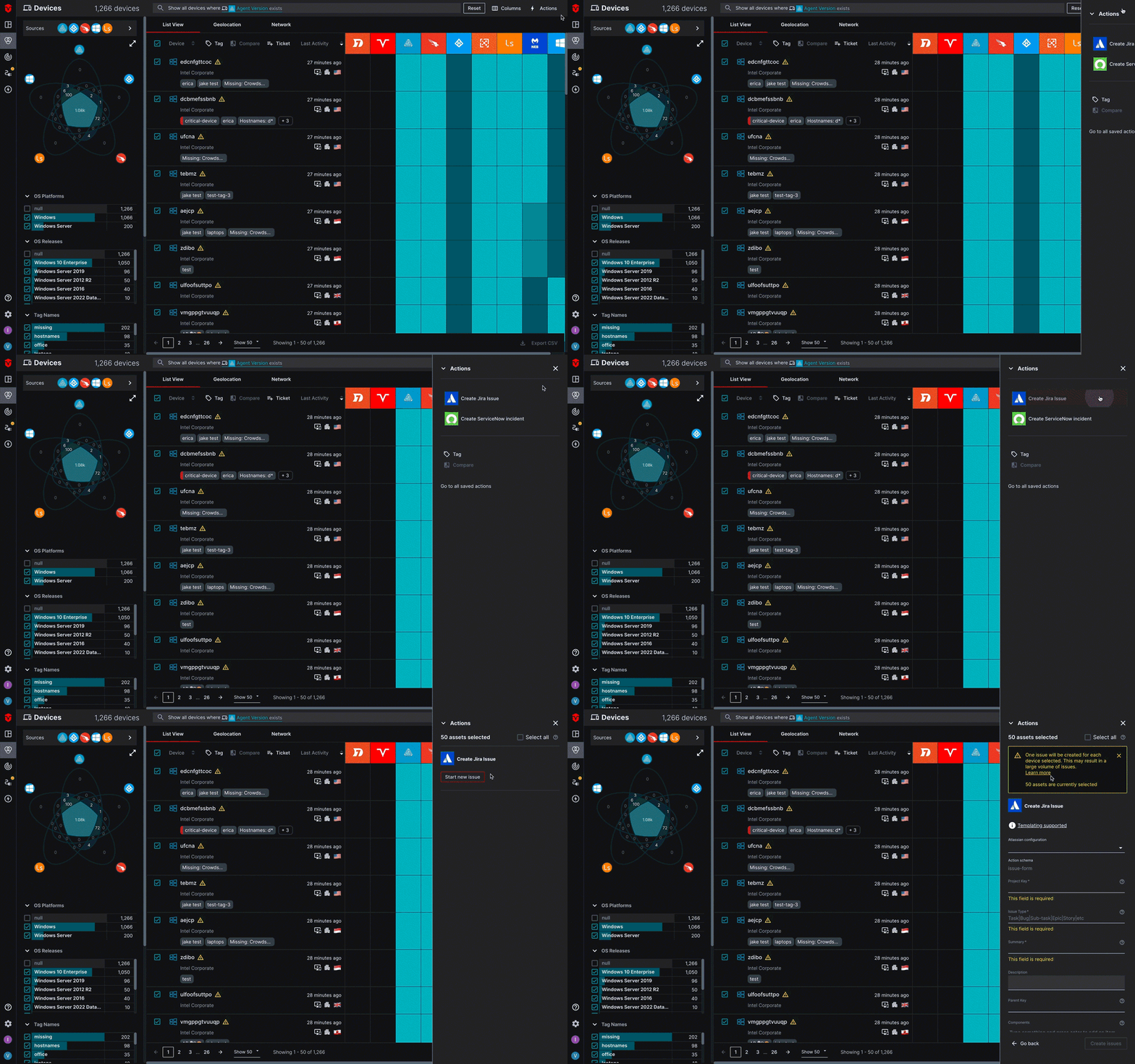
## 3. Create and Save Your Template
Please refer to the links below for platform-specific instructions on creating a ticket-action template.
* Jira
* ServiceNow